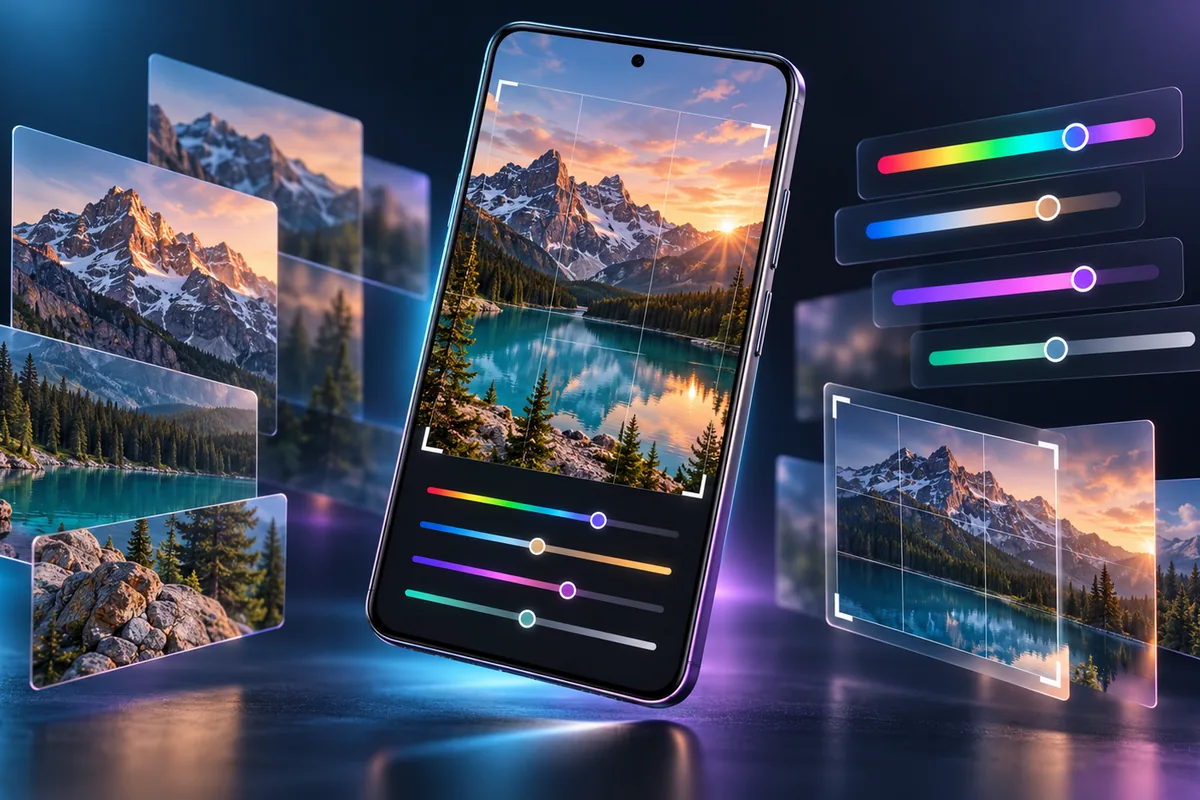
The best Android photo editing apps in 2026 are Snapseed for free manual edits, Adobe Lightroom for advanced photography, Google Photos for quick fixes, and Canva for social graphics. Picsart, VSCO, and Photoshop Express are also worth considering. The right choice depends on whether you need precise controls, creative effects, or a fast everyday workflow.
Which Android photo editing apps are best for different needs?
There is no single winner for every photo. A food picture for a Facebook page needs different tools from a RAW landscape shot. Start with the result you want, then choose an app whose free tools or paid features match your routine.
- Best fully free editor: Snapseed offers a strong set of manual editing tools without requiring a subscription.
- Best for serious photography: Adobe Lightroom combines detailed adjustments with an organized editing workflow.
- Best for everyday fixes: Google Photos makes basic improvements convenient when it is already your photo library.
- Best for playful designs: Picsart offers effects, stickers, and collage tools.
- Best for posts and thumbnails: Canva pairs photo adjustments with layouts and graphics.
- Best for a consistent visual style: VSCO emphasizes filters and repeatable looks.
- Best for quick Adobe-style edits: Photoshop Express provides approachable retouching and creative tools.
How do the best Android photo editing apps compare?
The table separates free access from optional paid features. Features, eligibility, and subscription terms can change, so check each app’s current Google Play listing before paying.
| App | Best for | Access | Main consideration |
|---|---|---|---|
| Snapseed | Manual edits | Free | Limited design tools |
| Adobe Lightroom | Detailed photography edits | Free tools; optional paid plan | Advanced tools may require payment |
| Google Photos | Quick everyday fixes | Free tools; some features may have conditions | Availability varies by device and account |
| Picsart | Effects and collages | Free tier; optional paid plan | Some assets are locked |
| Canva | Social graphics | Free tier; optional paid plan | Less suited to detailed photo correction |
| VSCO | Stylized looks | Free tier; optional paid plan | Broader preset access may cost extra |
| Photoshop Express | Fast retouching | Free tools; optional paid features | Check which tools are included |
What are the best free and paid Android photo editing apps?
Snapseed: best for free, hands-on editing
Snapseed is an excellent starting point if you want to improve a picture rather than build a graphic. Its tools cover cropping, perspective correction, tonal adjustments, and selective edits. You can brighten a dark subject without applying the same change to the entire frame. The interface rewards a little practice, especially when you compare your edited image with the original. Snapseed is a practical choice for students, small businesses, and anyone who wants capable editing without a subscription. It is not the best option for posters, templates, or elaborate social-media designs.
Adobe Lightroom: best for photographers who want control
Lightroom suits people who edit regularly and care about consistent color. Its controls for light, color, and detail help you refine an image without relying on a dramatic filter. It is particularly useful when several photos from the same event need a similar look. The free version provides a useful starting point, while some advanced tools and services require a paid plan. Check the current feature list before subscribing. Beginners may find Lightroom slower than a one-tap editor, but the extra control becomes valuable once you learn what each adjustment does.
Google Photos: best for quick everyday fixes
If Google Photos already holds your pictures, its built-in editor may be all you need. Crop a tilted shot, adjust brightness, or try an available suggestion before installing another app. That convenience matters when you are sharing family photos or product pictures from your phone. Google Photos also offers more advanced editing features, but availability can depend on your device, account, region, or current terms. Do not choose it solely for one advertised feature without checking your own phone. For detailed, repeatable edits, Lightroom or Snapseed provides a more focused workspace.
Picsart: best for creative effects and collages
Picsart is a good match for expressive posts rather than subtle photographic correction. Its creative tools can help you combine images, add decorative elements, and experiment with visual effects. That makes it useful for a birthday collage, a promotional image, or a playful profile picture. The free tier lets you explore the app, but some tools and assets require payment. Look for premium labels before committing to a design, especially if you need to export it quickly. For a natural-looking portrait, begin with modest adjustments instead of stacking multiple effects.
Canva: best for social posts and thumbnails
Canva is strongest when the final image needs a layout. You can place a photo into a social post, presentation graphic, or video thumbnail and arrange other elements around it. Templates make the process approachable for a shop owner creating a promotion or a blogger preparing a featured image. Canva includes basic photo adjustments, but it is not a replacement for a dedicated editor when exposure or color needs careful work. Edit the photo first in Snapseed or Lightroom if necessary, then bring it into Canva. Some templates and assets require a paid plan.
VSCO: best for a consistent visual style
VSCO appeals to people who want their photos to share a recognizable mood. Its presets provide a starting point, while editing controls let you refine the result. It can be handy for a travel album or a small brand that posts regularly. Avoid applying the same preset at full strength to every image: different lighting calls for different adjustments. VSCO has free and paid options, and the preset selection available to you may vary by plan. If you mainly need cropping, straightening, and exposure fixes, try a free general-purpose editor first.
Photoshop Express: best for fast retouching
Photoshop Express brings a selection of quick correction and creative features to Android. It is worth trying when you want to clean up a portrait or make a simple shareable edit without opening a more complex photography workspace. Despite its name, it is not the desktop version of Photoshop on a phone. Treat it as a separate mobile app with its own toolset. Some features may require payment, so check what is available in the free version before building your workflow around a particular tool. Compare its results with Snapseed on the same image.
How should you choose an Android photo editor in Bangladesh?
Start with your phone, your connection, and how often you edit. A free app that runs comfortably on your device is more useful than a feature-rich subscription you rarely open. This matters whether you are editing photos for a local business in Bangladesh or sharing travel pictures worldwide.
- Check storage and performance: Install one or two apps first instead of filling your phone with similar editors.
- Test your usual photos: Try a portrait, a low-light image, and a product shot before choosing a favorite.
- Consider data use: Some features need an internet connection or cloud processing. Test them if mobile data is limited.
- Review payment terms: Check local availability, billing methods, renewals, and export restrictions in the app before subscribing.
- Choose by output: Use a photo editor for image quality and a design app when you need a finished graphic.
What simple workflow makes phone photos look better?
Good editing usually starts with small corrections, not a filter. Save a copy when you want to preserve the original, then follow this order:
- Crop and straighten the photo so the subject is clear.
- Adjust brightness while keeping detail in bright skies and light clothing.
- Correct white balance if indoor lighting makes colors look too warm or cool.
- Increase contrast and saturation gently; check that skin and products still look natural.
- Use selective adjustments only where the image needs them.
- View the result at full size before exporting or posting.
For a Facebook shop, accurate product colors matter more than dramatic effects. For personal photos, a subtle edit often looks better across different phone screens.
Are free photo editing apps safe to use?
Free does not automatically mean unsafe, and paid does not guarantee privacy. Download apps from the official Google Play Store, review requested permissions, and read the privacy information when editing sensitive photos. An editor may need access to images you select, but consider whether other permissions make sense for your use. Cloud-based features may upload an image for processing, so check the app’s settings and terms before using them with private documents or family pictures. Keep the app updated, and avoid modified or cracked versions.
FAQ
What is the best completely free Android photo editor?
Snapseed is a strong choice for completely free manual editing. It handles common corrections and selective adjustments without requiring a paid plan. If you mainly need quick fixes, also try the editor already available in Google Photos.
Is Lightroom worth paying for on Android?
Lightroom can be worth paying for if you edit frequently and need specific advanced tools or services. Try its free tools first. Subscribe only after confirming that the paid features solve a problem in your own workflow.
Which app is best for editing photos for Facebook or Instagram?
Use Snapseed or Lightroom to improve the photo itself. Choose Canva when you need a post layout or thumbnail, and consider Picsart for collages and playful effects. The best choice depends on the final format.
Can I edit Android photos without an internet connection?
Many basic editing tools can work without a connection once an app is installed, but cloud features, downloads, and account services may not. Test your preferred tools in airplane mode before relying on them while travelling.
Should I use one app or several?
Begin with one app that covers most of your edits. Add a second only for a distinct task, such as using Snapseed for corrections and Canva for layouts. This keeps your workflow simple and saves storage.