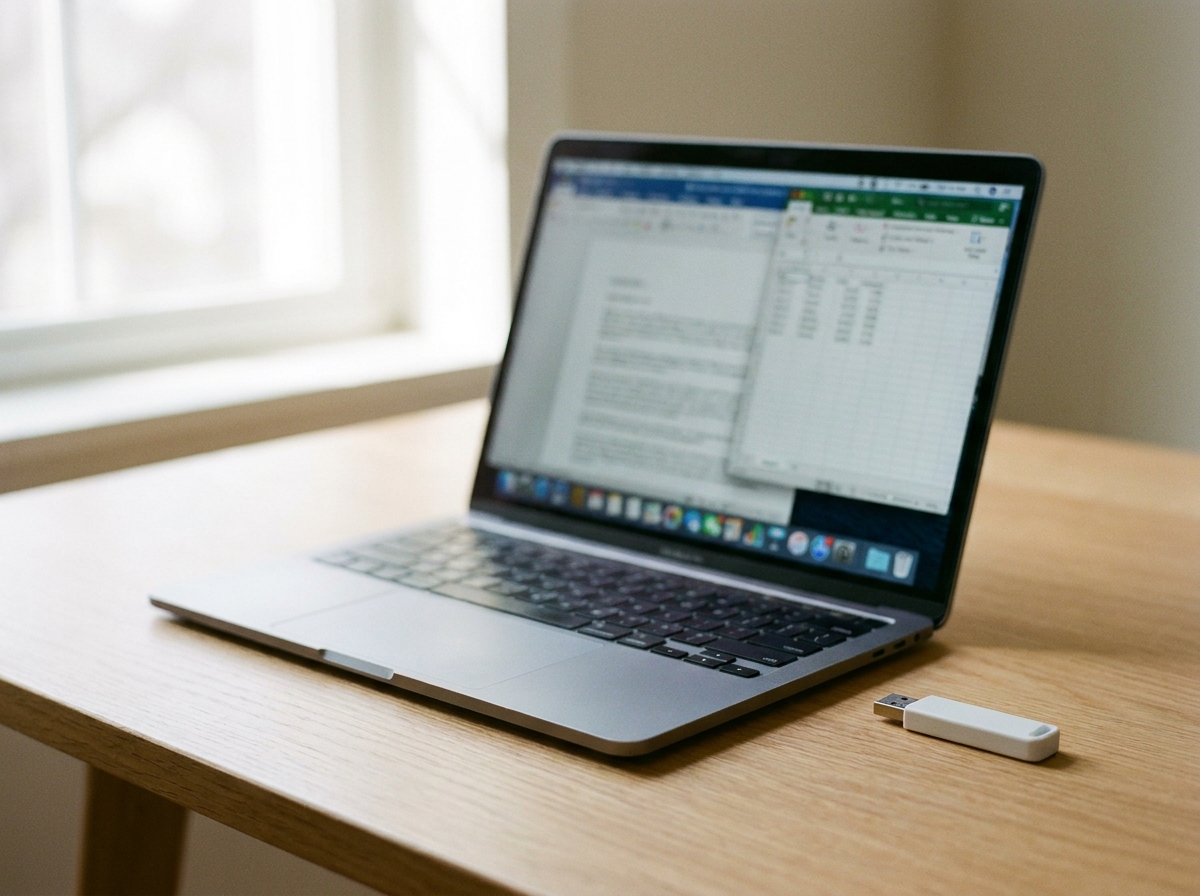
Many people still search for “Microsoft Office 2007 Portable.” The idea sounds handy: an office suite that runs from a USB drive with no install. But there is no official portable version of Office 2007 from Microsoft. Files that claim to be one are unofficial copies, and they come with real problems. This guide explains why, and shows safer ways to open and edit Word, Excel, and PowerPoint files on any computer.
Why “Office 2007 Portable” is a bad idea
Microsoft Office is paid software. An unofficial “portable” package is usually a repackaged copy that someone else made. That creates several risks:
- No trust. You cannot know what was changed inside the file. Repackaged software is a common way to spread malware.
- No license. Using a copy that was not sold to you by Microsoft or an authorized seller is not legal in most places, and we do not recommend or link to any such download.
- No security updates. Microsoft ended extended support for Office 2007 on October 10, 2017. Security holes found since then are not fixed.
- Poor file support. Office 2007 is old, and newer files, fonts, and features may not display correctly.
Because of this, we removed the old download link from this page. If you ever see a download link for a suite like this, take a moment to check if a website is safe before you click anything.
What you probably need instead
Most people who search for a portable Office want one of three things. Pick the one that matches you:
- I only need to open or lightly edit a file. Use a free web editor in your browser.
- I need a full office suite on my own computer, at no cost. Use LibreOffice, a free and open-source suite.
- I need full, current Microsoft Office. Buy or subscribe through Microsoft or an authorized seller.
None of these needs a risky download from an unknown site.
Option 1: Use Office in your web browser
Microsoft 365 for the web lets you open and edit Word, Excel, and PowerPoint files in a browser. You sign in with a Microsoft account. The free version has fewer features than the paid desktop apps, and it needs an internet connection, but it works on almost any computer. This is the closest thing to “portable” for most people, because nothing is installed.
- Go to the official Microsoft 365 for the web page and sign in with your Microsoft account (you can create one if needed).
- Choose Word, Excel, or PowerPoint.
- Upload your file, or start a new one.
- Edit as normal. Your work is saved to your online storage, so you can open it later on another device.
- When you finish on a shared or public computer, sign out and close the browser.
Free plans and limits can change over time, so check the Microsoft page for what is included today. Google Docs, Sheets, and Slides are another browser option, and they can open and export common Office file formats.
Option 2: Install LibreOffice
LibreOffice is a free, open-source office suite. It includes a word processor, spreadsheet, and presentation program. It can open many Office file types, including the .docx, .xlsx, and .pptx formats and older .doc and .xls files. It is a normal installed program, not a portable one, but it costs nothing and gets updates.
- Open the official LibreOffice download page. Do not use third-party mirrors or “download helper” sites.
- Choose your operating system and download the installer.
- Run the installer and keep the default settings unless you know you want something different.
- Open Writer, Calc, or Impress and use File, then Open to load your document.
- To share with Office users, use File, then Save As, and pick a Word, Excel, or PowerPoint format.
Be aware that complex layouts, fancy fonts, and advanced macros may look slightly different from the original. Always look over an important document before sending it. If disk space is tight, you may want to free up space on your Windows PC first.
Option 3: Get current Microsoft Office the proper way
If your job, school, or clients require exact Microsoft formatting, use a current version of Office. Microsoft sells it as a subscription and as a one-time purchase for some versions. Prices and plans change, so check the official Microsoft site. Schools and employers sometimes provide access at no extra cost to you, so ask them before you pay.
Tips for working with old Office 2007 files
- Keep a copy. Before opening an old file in a new program, duplicate it so the original stays safe.
- Check formatting. Page breaks, tables, and charts can shift between programs.
- Be careful with macros. Do not enable macros in files from unknown sources.
- Save in a modern format. Converting old .doc or .xls files to .docx or .xlsx makes them easier to open later.
- Keep a PDF. For documents that must look exactly the same everywhere, export to PDF.
- Capture what you see. If a layout looks wrong, you can take a screenshot to show someone when you ask for help.
Frequently Asked Questions
Is there an official portable version of Office 2007?
No. Microsoft did not release an official portable edition of Office 2007. Any file sold or shared under that name is unofficial.
Can I still use Office 2007 if I already own it?
If you have a legitimate copy, it may still run on your computer. But it no longer receives security updates, so it is best used offline and with files you trust. Moving to a supported option is safer.
Is LibreOffice really free?
Yes. LibreOffice is free to download and use, and its code is open source. Download it only from the official site. The project accepts voluntary donations, but they are not required.
Will my Word and Excel files look exactly the same in another program?
Often they will, but not always. Simple documents usually transfer well. Complex layouts, special fonts, and advanced features can change, so check your file before you share or print it.