How to Choose a Laptop for Work in 2026
A good work laptop should handle your daily tasks without slowing you down or making you uncomfortable. The right choice depends less on a long feature list than on where you work, which programs you use, and how long you expect to keep the computer. This guide explains how to choose laptop for work 2026 needs using practical checks you can make before deciding.
Start With Your Actual Workday
List the programs you use at the same time, not just the most demanding one. Email, video meetings, a browser full of tabs, and shared documents can put more pressure on a laptop together than they do separately. Note whether your work also includes large spreadsheets, coding projects, photo editing, or video production.
Next, think about your workspace. A laptop that stays on a desk most days can be larger and heavier than one you carry between meetings. If you mainly work at a fixed desk, the [desktop vs laptop comparison](https://nurict.com/desktop-vs-laptop-2026/) can help you decide whether portability is worth the trade-offs.
Check any requirements from your employer or school before comparing specifications. They may require a particular operating system, security feature, or connection for work equipment. Meeting those requirements comes before choosing a screen size or finish you happen to like.
Choose Enough Performance for Your Tasks
The processor handles much of the laptop’s everyday work. For documents, web apps, calls, and ordinary spreadsheets, a current midrange processor is usually a sensible starting point. Complex data work, software development, and frequent media editing may benefit from a faster processor with more cores, which are parts that help it handle several tasks at once.
Do not judge performance by the processor name alone. Look for independent tests of the exact laptop model, especially if it is thin and light. Two laptops with similar processors can perform differently because their cooling systems limit how long they can run at full speed.
Most office work does not require a separate graphics processor, often called a dedicated GPU. It can help with certain design, 3D, engineering, and video tasks, but it may add weight and shorten battery life. Check what your work software recommends rather than assuming extra graphics power will make every task faster.
Get Memory and Storage Right
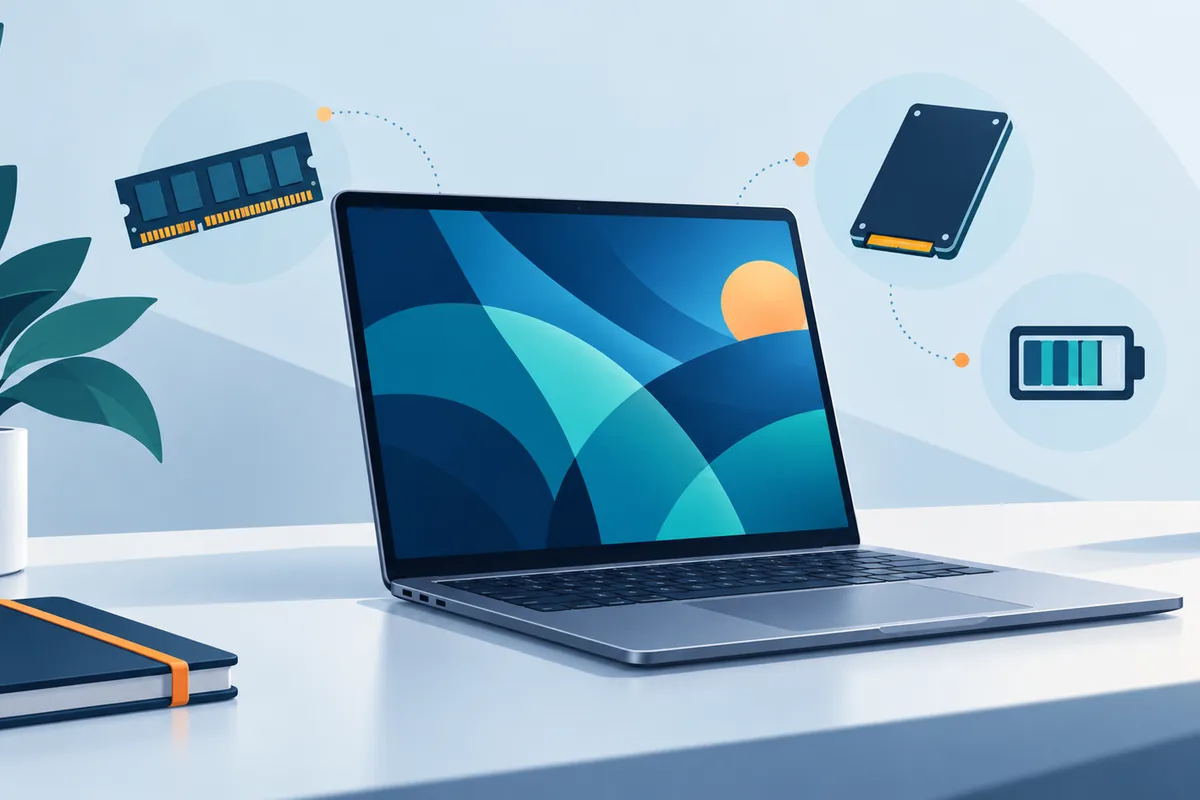
Memory, or RAM, helps keep active programs ready to use. For a typical work laptop in 2026, 16 GB is a practical target when you regularly have several apps and browser tabs open. Consider 32 GB if you work with large files, virtual machines, or demanding creative tools.
Storage holds your files and installed programs even when the laptop is off. A 512 GB solid-state drive gives many people room for work apps and local files, while larger projects or offline media libraries may need more. Check how much space your current computer uses before choosing, and leave room for future updates.
Some laptops let you add memory or replace the storage drive later; others do not. If either part is fixed in place, choose enough capacity for the full time you plan to use the laptop. Cloud storage can help with files, but it does not replace the memory needed to run your programs smoothly.
Pick a Screen You Can Work On Comfortably
Screen size is a balance between usable space and portability. Around 13 to 14 inches suits frequent travel, while 15 to 16 inches can make side-by-side documents easier to read. A taller screen shape can also show more lines of a document without making the laptop much wider.
Look beyond the screen’s resolution, which describes how many pixels it has. Brightness matters if you work near windows, and a matte or less reflective surface may reduce distracting glare. If you edit images where color accuracy matters, look for measured display results rather than relying on a vivid demonstration image.
Think about your usual viewing distance and whether text feels comfortable at the size you choose. A very high-resolution screen is not automatically better if it drains more power without improving your work. If possible, try reading a document and viewing a spreadsheet at your normal text size.
Treat Battery Claims as Estimates
Published battery figures often come from light tasks under controlled conditions. Video calls, bright screens, and demanding apps can reduce the time you actually get. Look for independent battery tests that resemble your work, and plan for a margin rather than expecting the stated maximum.
Charging matters too. Check the size and weight of the power adapter if you carry it daily, and confirm whether the laptop can charge through a common USB-C connection. Some laptops use USB-C but still need a higher-power charger to keep up during demanding work.
If you work away from an outlet, battery life may matter more than a small gain in processor speed. If the laptop rarely leaves your desk, you can give more weight to screen size and connections. The [desktop vs laptop comparison](https://nurict.com/desktop-vs-laptop-2026/) offers another way to weigh that decision.
Check Ports and Your Desk Setup
Write down everything you connect during a normal week: an external display, headset, mouse, storage drive, network cable, or meeting-room equipment. Then check the laptop’s exact port list. Two ports that look alike may support different features, including charging, fast data transfer, or an external monitor.
A docking station can connect several desk devices through one cable, but it adds another device to manage. Confirm that the laptop supports the display resolution and number of monitors you need before relying on a dock. Also check whether its wireless connection meets any requirements for your office or home network.
A built-in webcam, microphone, and speakers are important if meetings fill your calendar. Sample recordings and independent tests can reveal more than a camera’s resolution alone. For private conversations, check whether the laptop has a physical camera cover or a clear camera activity indicator.
Pay Attention to Comfort and Build
You will notice a poor keyboard or touchpad every day. If possible, type a full paragraph, use the touchpad to select text, and check that the keys do not feel cramped. A backlit keyboard can help in dim rooms, but comfortable spacing and reliable input matter more.
Weight is only part of portability. Consider whether the laptop fits your bag, whether you can open it comfortably in a small space, and whether the charger adds much to what you carry. A sturdy hinge and a base that does not flex excessively can also make daily use more pleasant.
Listen for fan noise during the type of work you actually do, not only while the laptop is idle. Check whether the underside or keyboard becomes uncomfortably warm during long calls or demanding tasks. Independent reviews can help when you cannot test those conditions yourself.
Plan for Security and Long-Term Use
A work laptop may hold sensitive documents and account access. Look for device encryption, which protects stored data, and a convenient way to sign in securely, such as a fingerprint reader. Ask your employer whether it needs particular management or security features before making a decision.
Check the operating system’s update support and whether the maker publishes driver updates for the model. Updates help protect the computer and keep its parts working with newer software. A laptop that meets your needs today but has limited support may be a poor fit for several years of work.
Repair options deserve attention as well. Find out whether the battery can be replaced, whether replacement parts are available, and what the warranty covers in your area. Compare those details alongside performance and portability, rather than focusing on specifications alone.
Make a Shortlist Before Deciding
Choose two or three laptops that meet your required software, memory, storage, and connection needs. Then compare the differences you will feel daily: keyboard comfort, screen glare, battery life during real work, fan noise, and carrying weight. Remove any model with a problem you cannot easily work around.
If two options remain close, think about the full setup you need rather than the laptop alone. An external monitor or dock may make a portable model more useful at a desk, while a larger built-in screen may reduce the need for extra equipment. For a fixed workspace, revisit the [desktop vs laptop comparison](https://nurict.com/desktop-vs-laptop-2026/) before settling on a laptop.
Finally, confirm the exact configuration you are considering. The same model name can cover different screens, memory amounts, batteries, and ports. Checking the complete specifications helps ensure that the advice and test results you found apply to that particular version.
Related reading: desktop vs laptop comparison.
Keep reading: desktop vs laptop comparison.
Frequently Asked Questions
Is 16 GB of memory enough for work in 2026?
For many people using office apps, video meetings, and multiple browser tabs, 16 GB is enough. Choose more if your work involves large creative projects, complex data, or virtual machines, especially when memory cannot be upgraded later.
What screen size works best for a laptop used every day?
A 13- or 14-inch screen is easier to carry, while a 15- or 16-inch screen gives you more room for documents and spreadsheets. Your choice depends on how often you travel and whether you use an external monitor at your desk.
Do I need a dedicated graphics processor for office work?
Usually not. Built-in graphics can handle documents, web apps, presentations, and video meetings, while certain design, engineering, and media programs may benefit from dedicated graphics.
How much storage should a work laptop have?
A 512 GB solid-state drive is a useful starting point for many workers. Check your current storage use and allow extra space if you keep large projects, media files, or documents available offline.
What should I check if I work mostly from home?
Focus on screen comfort, keyboard quality, video-call performance, and connections for your desk equipment. Battery life still matters for occasional moves, but it may be less important than a setup you can use comfortably for hours.








