Best Accessories for a New Laptop in 2026
A new laptop can handle many tasks on its own, but a few well-chosen accessories can make it easier to use every day. The best laptop accessories 2026 are not the same for everyone: they depend on your ports, your workspace, and whether you carry the laptop often. Start with problems you actually want to solve, rather than collecting extras you may never use.
Check Your Laptop Before Choosing Accessories
Look at your laptop’s ports, charging requirements, screen size, and weight. A USB-C port may handle data, charging, video, or only some of those jobs, so check the laptop’s specifications rather than judging by the port’s shape. Also note whether it has a headphone jack, an SD card slot, or a full-size HDMI port.
Think about where you use the laptop most. Someone who works at a desk may benefit from a monitor and separate keyboard, while a frequent traveler may get more use from a compact charger and protective sleeve. If you are still deciding how much of your setup should stay in one place, this [desktop vs laptop comparison](https://nurict.com/desktop-vs-laptop-2026/) can help clarify your priorities.
A USB-C Hub or Dock for More Connections
A hub adds several connections through one laptop port. It can be useful when you need to attach a monitor, a wired network cable, a memory card, or older USB devices. A dock serves a similar purpose but is often larger and better suited to a desk where everything stays connected.
Make a list of the connections you need before choosing either one. Check the supported monitor resolution and refresh rate, which is how many times the screen updates each second. If you want to charge through the hub, confirm that both it and the laptop support USB-C power delivery at a suitable wattage.
One caution: a hub cannot add a feature that its connected laptop port does not support. For example, an HDMI socket on a hub may not work if the laptop’s USB-C port cannot send video. Your laptop’s manual or specifications are the safest place to confirm this.
A Charger and Cable That Match the Laptop
A second charger can be convenient if you regularly work in two places, but compatibility matters more than size. Check the power rating of the charger supplied with your laptop, then confirm the laptop’s requirements before using another one. A lower-powered charger may charge slowly or fail to keep up while the laptop is under heavy load.
For USB-C charging, the charger and cable both need to support enough power. Not every USB-C cable is rated for the same wattage, even when the plugs look identical. If your laptop uses a dedicated charging connector, check the exact connector and electrical requirements instead of assuming a similar-looking adapter will work.
Keep cables away from chair wheels and tight bends, and replace any with damaged insulation or loose plugs. These simple checks matter more than having the smallest charger available.
A Stand for a More Comfortable Screen Position
A laptop stand raises the screen so you do not have to look down as far. For longer desk sessions, position the screen roughly at eye level and adjust it until your neck feels relaxed. A stand is especially helpful when you use a separate keyboard and mouse, because your hands no longer need to reach the raised laptop.
Choose a stable stand that fits your laptop’s size and leaves its vents clear. Folding stands are easier to carry, while heavier stands tend to stay put on a desk. If you type directly on the laptop, a steep stand may put your wrists at an uncomfortable angle; a small lift at the back may be more practical.
A Separate Keyboard and Mouse
A separate keyboard and mouse can make a desk setup more comfortable, particularly when your laptop sits on a stand. Place the keyboard at a height that lets your shoulders relax and your elbows rest near your sides. Keep the mouse close enough that you do not have to stretch your arm repeatedly.
Wired models are simple and do not need charging. Wireless models reduce cable clutter, but check whether they connect through Bluetooth or require a small USB receiver that takes up a port. Choose a keyboard layout you can use comfortably and a mouse that fits your hand, rather than focusing on extra buttons you may not need.
An External Monitor for Desk Work
An external monitor gives you more room for documents, calls, and side-by-side windows. Before connecting one, check the laptop’s video outputs and the monitor connections you plan to use. Also confirm the resolution and refresh rate the laptop can support through that particular port, hub, or dock.
Screen size is only part of the decision. Consider how far you sit from the display, whether its stand adjusts, and whether its text looks comfortable at your preferred setting. If you spend hours reading, a clear screen positioned at a comfortable height can be more useful than simply choosing the largest display.
An extra monitor makes the most sense when you have a regular work area. If your main reason for choosing a laptop was to move freely between rooms or locations, see the [desktop vs laptop comparison](https://nurict.com/desktop-vs-laptop-2026/) before building a large fixed setup around it.
External Storage and a Backup Plan
An external drive is useful for large files and backups, especially if your laptop has limited built-in storage. A portable solid-state drive, often called an SSD, has no moving parts and is generally easier to carry. A hard drive may offer more capacity for bulky archives, but it needs more care when moved.
Choose capacity based on what you need to store, leaving room for future files and multiple backups. Check the drive’s connector and whether your laptop can use its full transfer speed. A fast drive will not reach its potential through a slower port or cable.
Most importantly, an external drive is not a backup if it is the only place a file exists. Keep another copy of important files in a separate location, and test occasionally that you can restore them. Protect sensitive files with encryption, which locks the data behind a password or recovery key.
A Sleeve or Case for Travel
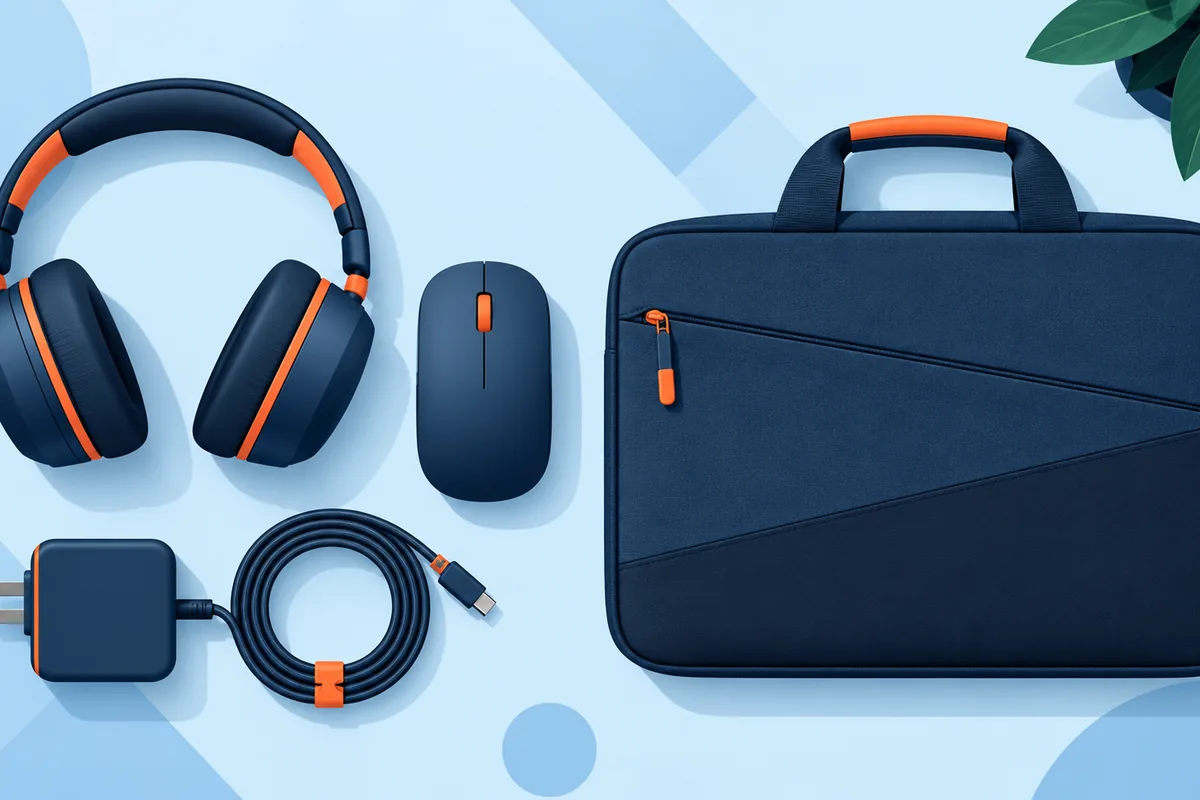
A padded sleeve helps protect a laptop from scratches and minor bumps inside a larger bag. Check the laptop’s actual dimensions rather than relying only on its advertised screen size. The fit should be snug enough to limit movement but not so tight that you have to force the laptop inside.
If you carry chargers and drives, keep hard objects away from the laptop’s screen and lid. A bag with a separate padded compartment can help. Protection is not a substitute for careful handling: keep liquids in a different compartment, and do not place heavy items on top of the laptop.
Audio and Video Accessories for Calls
If you make frequent video calls, test the laptop’s built-in camera, microphone, and speakers before adding anything. Room lighting often improves your picture more than a new camera does. Face a window or a soft lamp, and avoid sitting with a bright light directly behind you.
Headphones or a headset can help others hear you clearly in a noisy room and reduce sound leaking into your microphone. For long calls, comfort and clear speech matter more than extra features. Check whether your laptop has the right audio jack or whether you will connect by USB or Bluetooth.
Portable Power for Days Away from an Outlet
A power bank can extend laptop use when an outlet is hard to reach, but many are designed mainly for phones. Confirm that it supports laptop charging, provides enough USB-C power, and works with your laptop’s charging method. Check its capacity and weight together, since a larger battery also takes up more space in your bag.
If you travel by air, check the current battery rules for your route before packing. Keep a suitable charging cable with the power bank, and test the combination at home. When practical, lowering screen brightness and closing unused apps can extend battery life without adding anything to carry.
How to Decide What You Need First
Start with one problem you notice during normal use. If you run out of ports, consider a hub; if your neck feels strained at a desk, try improving screen height. If losing files would be a serious problem, make a backup plan before thinking about convenience extras.
Compare compatibility, durability, size, and the number of tasks an accessory will actually help you complete. Check return terms and warranty coverage where relevant, but do not let a long feature list outweigh your needs. The most useful setup is often a small one that works reliably at home and is easy to carry when needed.
Related reading: desktop vs laptop comparison.
Keep reading: desktop vs laptop comparison.
Frequently Asked Questions
What accessory should I get first for a new laptop?
Start with whatever solves your most immediate problem. For many people, that means a backup drive, a protective sleeve, or a hub for missing ports. Check what your laptop already includes before adding another device.
Will any USB-C hub work with my laptop?
No. USB-C describes the plug shape, but laptops differ in the data, video, and charging features their ports support. Compare the hub’s requirements with your laptop’s specifications, especially if you plan to connect a monitor.
Do I need an external monitor?
Not necessarily. It can help if you often work with several windows or spend long hours at a desk. If you mostly use your laptop while traveling, its built-in screen may be enough.
Can I use a phone charger with my laptop?
Only if the laptop supports charging through that connection and the charger provides suitable power. Many phone chargers supply too little power for a laptop in active use. Check the laptop’s requirements and the ratings on both the charger and cable.
Is an external drive enough to protect my files?
An external drive helps, but it can also fail or be lost. Keep at least one additional copy of important files in a separate location. Test your backups so you know the files can be recovered when needed.