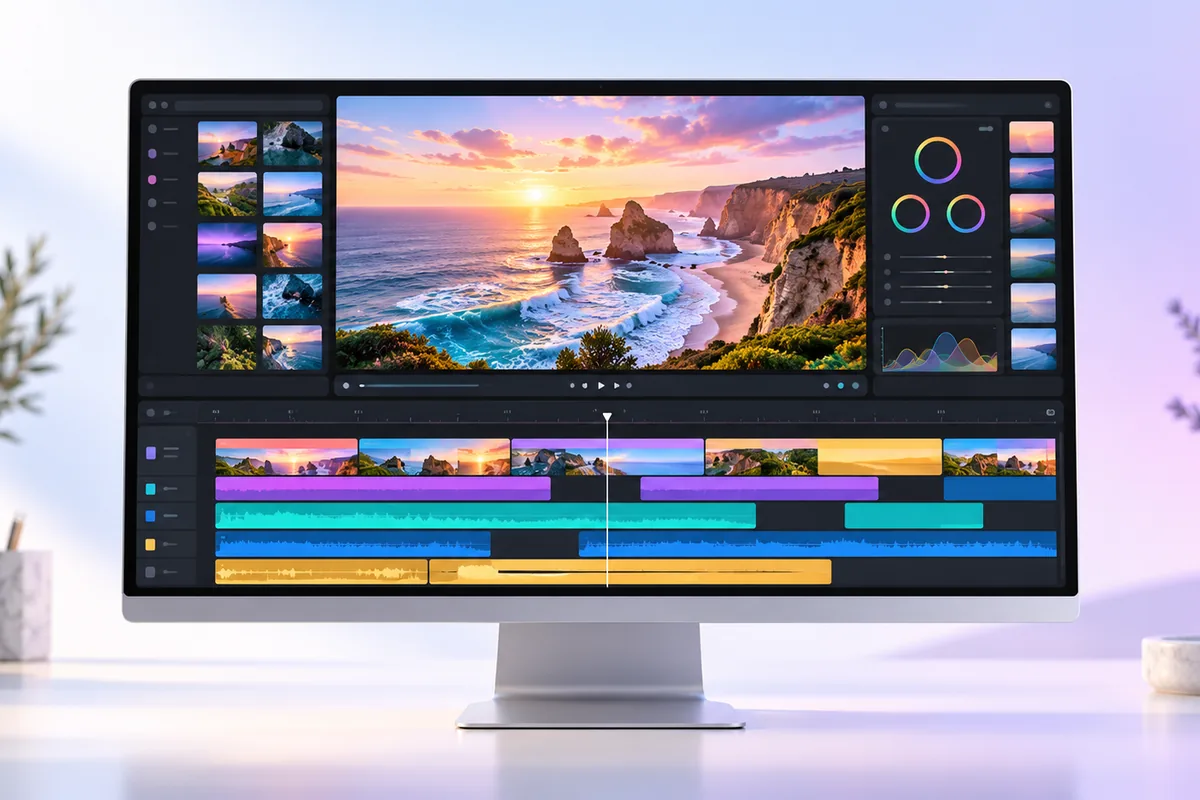
The best free video editors for PC in 2026 are DaVinci Resolve for advanced work, Shotcut and Kdenlive for flexible editing, OpenShot for basic projects, and Clipchamp for quick videos. CapCut is also easy to use, but its free features and export rules deserve a closer look. We researched what each editor offers, where limits may appear, and which one is worth learning.
DaVinci Resolve: Best for Growing Your Skills
DaVinci Resolve is the strongest choice here if you want to keep learning after your first few videos. Its free version includes serious editing, color, audio, and motion-graphics tools. Standard projects can be exported without a watermark, though some effects and features are reserved for the paid Studio version. Check whether an effect is marked as Studio-only before building a project around it.
The trade-off is complexity. Resolve has several workspaces, and a new user may need time to understand its timeline, media settings, and export page. It also asks more of a PC than a basic editor. A capable processor, enough memory, and suitable graphics hardware make a noticeable difference, especially with high-resolution footage. Our simple explanation of what a CPU does can help if you are checking your computer’s specifications.
Choose Resolve for longer videos, careful color work, or a skill you want to develop. If you only need to trim a clip and add a title, start somewhere simpler.
Shotcut: Best No-Watermark All-Rounder
Shotcut is a free, open-source editor for people who want useful controls without a subscription or a built-in watermark. You can cut clips, work across tracks, add filters, adjust audio, and choose from a wide range of export settings. There is no fixed free-tier export resolution limit imposed by the editor, although what your PC can handle comfortably is another matter.
Its interface is practical rather than polished. Some tasks take more steps than they do in editors built around templates, and the number of export options can look intimidating at first. For an ordinary video, a suitable preset is usually a better starting point than changing every setting yourself.
Shotcut suits tutorials, family videos, and simple YouTube projects when you want control over the finished file. Video projects also need space for source footage and exports; an SSD versus HDD comparison can help you decide where to keep active projects. Pick Shotcut if predictable, watermark-free exports matter more to you than flashy templates.
Kdenlive: Best for a Traditional Editing Timeline
Kdenlive is another free, open-source option with no built-in export watermark. It offers multiple video and audio tracks, effects, titles, and proxy editing. Proxies create lighter working copies of demanding footage, which can make editing smoother on a modest PC without changing the original files.
Kdenlive feels closer to a conventional video-editing program than a quick social-video maker. That is good news if you want to arrange many clips, adjust sound, and revise a project over time. It is less appealing if you expect a guided, template-first experience. As with any full editor, its menus and effect controls take practice.
Exports are not locked to a small free-tier resolution, but large files and demanding effects can still take time to render. Save your work regularly and make a short sample export before committing to a long project. Kdenlive is a sensible choice for a recurring video series or a school project with several tracks. Between it and Shotcut, the better choice may simply be the timeline you find easier to understand.
OpenShot: Best for Straightforward Edits
OpenShot keeps the basics approachable. Drag clips onto a timeline, trim them, add transitions or titles, and export a finished video. It is free and open source, and it does not add a built-in watermark or impose a paid export tier. That makes it an easy first stop for a short presentation, a family clip, or a simple class assignment.
Its simplicity has limits. A project with many effects, layers, or long high-resolution clips may feel less comfortable here than in an editor built for complex work. Preview performance also depends on your computer and footage, so do not assume that a simple-looking interface guarantees smooth editing on every PC.
OpenShot is worth trying when your plan is clear: cut unwanted sections, put clips in order, add a little text, and finish. If you are choosing a computer for coursework as well as editing, our guide to what matters in a student laptop covers the broader buying decision. Move to Shotcut or Kdenlive when your projects need more precise control.
CapCut: Best for Fast Social Videos, With Caveats
CapCut’s desktop editor makes short videos quick to assemble. Captions, effects, and a workflow aimed at vertical video can save time if you mainly post clips to social platforms. Its learning curve is gentler than DaVinci Resolve’s, especially when you start with a straightforward cut-and-caption project.
The important warning is that “free editor” does not mean every effect, asset, template, or export option is free. CapCut’s available features and rules can change by version, region, and account. Some workflows may include an ending clip or use elements that require an upgrade. Before you spend hours editing, make a short sample video using the exact tools you plan to use, then inspect the exported file for a watermark, extra clip, or restriction.
CapCut suits someone who values speed and social-video features and does not mind checking which tools are available. If you want a more predictable no-watermark workflow without paid assets mixed into the interface, Shotcut, Kdenlive, or OpenShot is a safer starting point.
Clipchamp: Best for Quick Windows Projects
Clipchamp is convenient when you want to make a video without learning a traditional editing timeline. Its guided interface works well for trimming clips, adding text, and assembling a short explainer or presentation. For projects using free features and assets, its free plan generally allows watermark-free exports at up to 1080p. Check the current export screen before starting if a particular resolution is essential.
Pay attention to the media you select. Premium stock items, effects, or other paid features can change what you can export on the free plan. Clipchamp also leans more heavily on templates and account-connected features than the open-source editors in this list, which may not suit someone who wants a fully local, flexible editing setup.
For a quick Windows video with basic titles and a familiar interface, Clipchamp is a reasonable choice. For detailed color work, complicated audio, or a project you expect to revisit and expand, choose a fuller editor. As with CapCut, a short export made before the real project is the simplest way to spot an unexpected limit.
How to Choose and Avoid Export Surprises
Start with the video you need to finish, not the editor with the longest feature list. For a quick trim and title, try OpenShot or Clipchamp. For regular editing without built-in watermarks or free-tier export caps, compare Shotcut and Kdenlive. For demanding projects and a steeper learning path, consider DaVinci Resolve. CapCut makes sense when social-video tools are your priority and you are willing to check its current restrictions.
Before editing a full project, import a few clips, add the title or effect you intend to use, and export 20 seconds. Play that file outside the editor. Look for a watermark or added ending, confirm the resolution, and check that the sound and text appear correctly. This small step is more useful than relying on a general claim that an app is “free.”
Free software can mean different things: a fully free tool or a free tier with paid extras. The same distinction matters when comparing free office suites. For video editing, check the specific features and export options your project needs, because policies can change after an app update.
Frequently Asked Questions
Which free PC video editor has no watermark?
Shotcut, Kdenlive, and OpenShot do not add built-in export watermarks. DaVinci Resolve also exports standard free-version projects without one, but check whether you have used a Studio-only effect.
What is the easiest free video editor for a beginner?
OpenShot is a good place to start for basic cuts, titles, and transitions. Clipchamp is another approachable choice for quick Windows projects, but check that your selected assets are free.
Can I export a free video in 4K?
Some free editors support 4K exports, including Shotcut, Kdenlive, and DaVinci Resolve within its free-version limits. Your footage, export settings, and PC hardware will affect the result and rendering time.
Should I use CapCut or an open-source editor?
Choose CapCut if fast social-video features matter most and you can check its current free-tool rules. Choose Shotcut, Kdenlive, or OpenShot if you prefer a more predictable workflow without paid assets mixed in.
Final Thoughts
There is no single best free video editor for every PC or every project. Shotcut and Kdenlive offer the clearest balance of useful tools and predictable, watermark-free exports. OpenShot is simpler, DaVinci Resolve has more room to grow, and Clipchamp and CapCut are handy for quick videos if you watch their free-tier limits. Try a short export first, then commit to the editor that makes your work easiest.