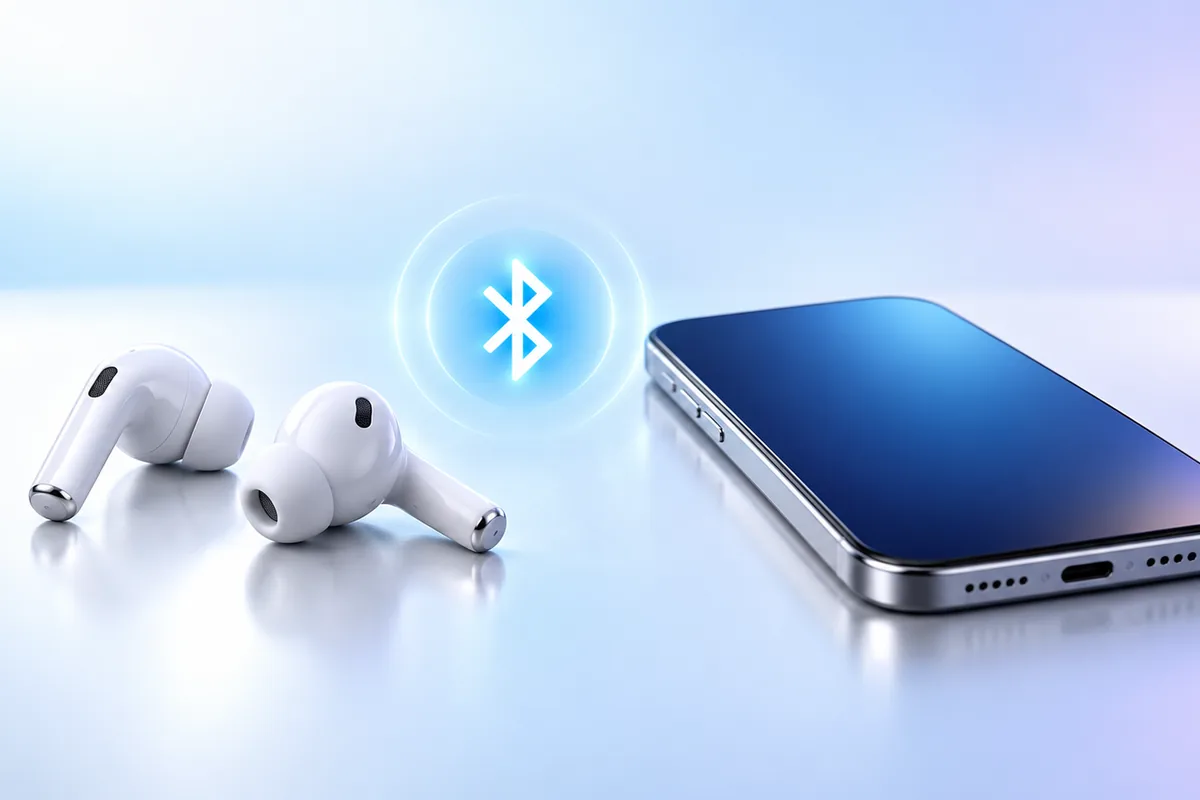
For a quick bluetooth not connecting fix, turn Bluetooth off and on, restart both devices, and make sure the device you want to connect is in pairing mode. If that fails, forget the saved connection and pair again. The right next step depends on whether you are connecting a phone, earbuds, a computer, or a car.
Start With the Simple Checks
Bluetooth can fail for ordinary reasons: a device is out of range, its battery is low, or it has connected to something else. Put the devices close together and charge both if needed. Then turn Bluetooth off and back on at the phone or computer, and restart the accessory. If you are unsure whether a low battery is the cause, charge the device before changing more settings. For broader advice about phone power, see our guide to common iPhone battery myths.
Check that airplane mode is off. On some devices, Bluetooth can be switched on while airplane mode remains active, but turning airplane mode off removes one possible source of confusion. Also check the accessory’s light or screen: being powered on does not always mean it is ready to pair.
If the connection worked yesterday, look for a nearby phone, tablet, or computer that may have claimed it first. Disconnect the accessory from that device before trying again. These checks are quick and avoid resetting settings you may not need to change.
Put the Device in the Right Pairing Mode
Pairing mode is the state in which an accessory announces that it is available for a new connection. It is different from simply turning the accessory on. Earbuds may need to be inside their case with the lid open, followed by a press of the case button. A speaker may have a separate Bluetooth button. The exact steps vary, so check the device’s instructions if its light pattern is unclear.
On your phone or computer, open Bluetooth settings and look under available or new devices. Wait a few seconds for the name to appear. If you see several similar names, check the model name before selecting one. Do not repeatedly tap an old saved entry when the accessory is trying to create a new pairing.
Controllers can be especially confusing because they may remember a console or computer. If you move one between systems, disconnect it from the old system and use its pairing button or button combination before searching again. Our PC versus console comparison discusses the different ways people use these devices; for pairing, the important point is knowing which system the controller is currently connected to.
Forget the Old Connection and Pair Again
A saved pairing can become unhelpful after an update, a reset, or a connection to another device. If your phone says “saved” but will not connect, remove that saved entry. On most phones, open Bluetooth settings, select the accessory’s name or information icon, and choose Forget, Unpair, or Remove. Windows and macOS offer similar remove-device options in their Bluetooth settings.
Next, restart the accessory, put it in pairing mode, and search for it again. Accept any matching pairing prompt on both screens. If a code appears on each device, check that the codes match before confirming. Avoid guessing a PIN unless the accessory’s instructions specify one.
For earbuds that appear as two separate entries or connect on only one side, follow the maker’s reset instructions and then pair them as a set. Reset steps differ by model; holding a random button for a long time can trigger a different function. Forgetting a device removes its saved Bluetooth connection, not the files, contacts, or other content on your phone.
Check Permissions and Reset Bluetooth Settings Carefully
If an accessory connects in system settings but fails inside one app, check that app’s permissions. Some apps need Bluetooth access to discover or control nearby devices. On an iPhone, look for the app under Settings > Privacy & Security > Bluetooth. On Android, the permission may be called Nearby devices; names and menus vary by version. Our guide to iPhone privacy settings explains why it is worth reviewing app access rather than allowing every request automatically.
If several accessories fail on one phone, restarting it is safer than jumping straight to a full reset. On Android, you may also find an option to clear the Bluetooth system app’s cache in Settings. The path varies, and some phones do not show this option. Clear the cache only if you can identify the Bluetooth system app; clearing its storage or data may remove saved pairings.
A network settings reset is a later step, not a first one. It can remove saved Wi-Fi networks and Bluetooth pairings, depending on the device. Read the confirmation screen so you know what you will need to set up again.
Handle Earbuds and Car Connections Differently
Earbuds often switch between devices automatically. If they will not connect to your phone, turn off Bluetooth temporarily on the laptop or tablet they last used, then try the phone again. Check that both earbuds and their case have enough charge. If only one side works, place both buds in the case, close it briefly, and try reconnecting before following the maker’s full reset procedure.
Car systems can keep a list of old phones and may have a limit on saved devices. If a new phone does not appear, remove an unused phone from the car’s Bluetooth menu. Then forget the car on your phone, put the car system into its add-phone mode, and pair from the beginning. Keep the car parked while working through its menus.
A phone may connect for calls but not music, or the other way around. Check the connection options for that device and make sure the intended audio function is enabled. If calls work but music remains silent, also check the car’s audio source and the phone’s media volume. A successful pairing does not always select the right output automatically.
Update Software and Check for a Device-Specific Fault
When the basic fixes do not work, check for updates on both sides of the connection. Install available phone or computer system updates, then check the accessory maker’s app or support instructions for a firmware update. Updates can address connection problems, but they are not a guaranteed fix. Keep devices charged and follow the update instructions so the process is not interrupted.
On a laptop, battery-saving settings may affect Bluetooth, especially after the computer wakes from sleep. Try connecting while the laptop is plugged in, restart it, and review any power-saving setting that turns wireless features off. For general advice on managing a laptop’s power, read our laptop battery care guide.
Finally, narrow down where the fault lies. Try the accessory with a second phone or computer, and try a different Bluetooth accessory with the original device. If one accessory fails everywhere, its own settings, firmware, or hardware may be the problem. If every accessory fails on one device, focus on that device’s software and Bluetooth settings. This comparison is more useful than repeating the same pairing attempt.
A Practical Fix Order for Any Device
Work through these steps in order, stopping as soon as the connection works. This keeps a small problem from turning into a long settings search.
- First: Move the devices close together, check their charge, and restart both.
- Next: Disconnect the accessory from other nearby devices and put it in pairing mode.
- Then: Forget the old Bluetooth entry and pair again.
- If one app fails: Check that app’s Bluetooth or nearby-device permission.
- If several connections fail: Check for system and accessory firmware updates, then consider a cache or network settings reset after reading what it removes.
- Still stuck: Try each device with another Bluetooth product to identify which side needs attention.
Do not reset everything at once. If you change one thing at a time, you will know what helped. This also matters when explaining the issue to a support team: “the earbuds connect to another phone but not mine” is much more useful than “Bluetooth is broken.” If the accessory is very old, check its instructions for supported devices and features. Being able to see a device in a Bluetooth list does not always mean every function you expect will work.
Frequently Asked Questions
Why can my phone see a Bluetooth device but not connect to it?
The device may already be connected elsewhere or may not be in pairing mode. Disconnect it from other devices, then forget its saved entry on your phone and pair again.
Will forgetting a Bluetooth device delete my files?
No. It removes the saved Bluetooth pairing, so you will need to pair the devices again.
Why do my earbuds connect to my laptop instead of my phone?
They may be reconnecting to the last device they used. Disconnect them from the laptop or turn off its Bluetooth briefly, then connect them to your phone.
When should I reset network settings?
Consider it only after simpler checks fail across multiple Bluetooth devices. Read the reset screen first, because it may also remove saved Wi-Fi networks and other connections.
Final Thoughts
Most Bluetooth connection problems are worth approaching in a simple order: check charge and pairing mode, disconnect other devices, then forget and re-pair. If that does not help, check permissions, updates, and settings before trying a broader reset. Testing each side with another device can show where the problem is.