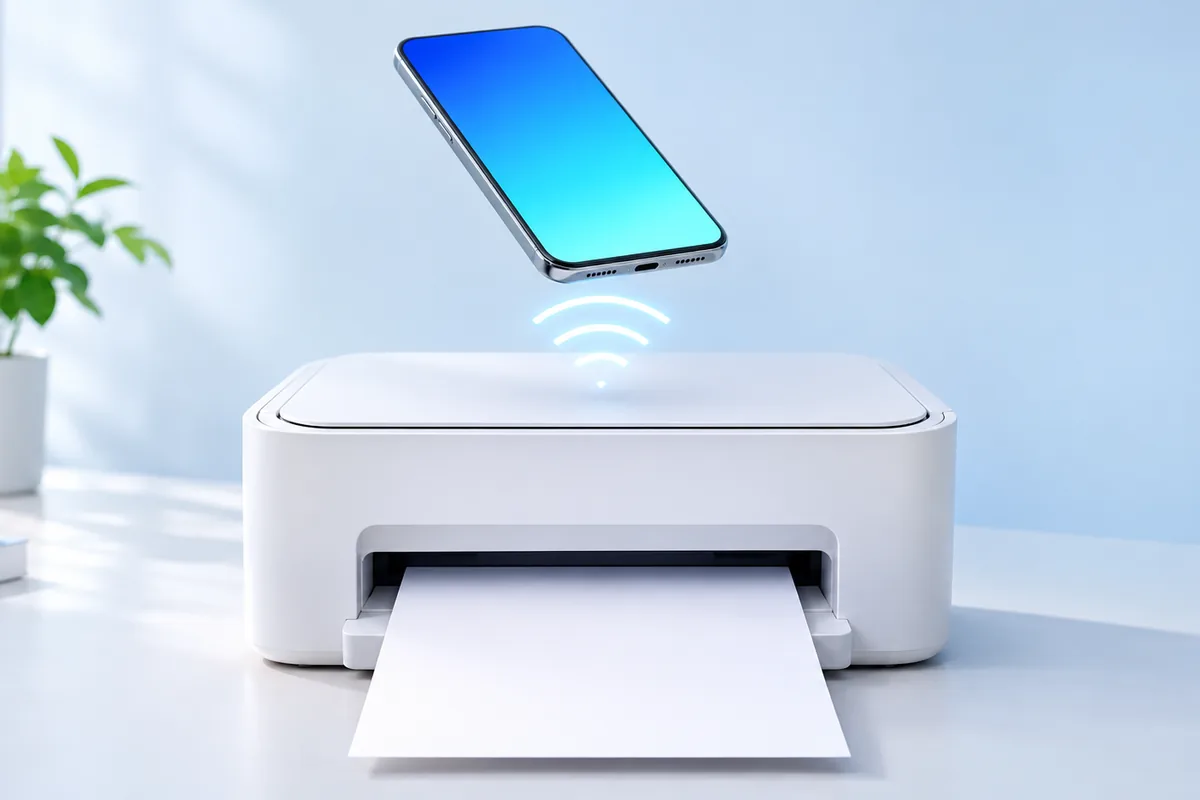
You can print from phone without using a computer. The simplest options are your phone’s built-in print feature, your printer maker’s app, or email-to-print if your printer supports it. Start with the built-in option, then try the others if your printer does not appear.
Before You Start: Check the Printer and File
Turn on the printer, load paper, and check that it has ink or toner. For built-in printing, your phone and printer usually need to be on the same Wi-Fi network. A printer connected to a guest network may not appear on a phone connected to your main network.
Next, open the file, photo, webpage, or email you want to print. Look for a Share, More, or three-dot menu. The Print command is often there rather than on the main screen. If you are printing a document, open it in an app that can display the complete file first. If you need to edit the document before printing, our guide to free office suites can help you choose an app.
Printer support varies by model. AirPrint is the built-in route on iPhone, while Android uses print services that may differ by phone and printer. If neither finds your printer, its official app may provide another route. Email-to-print is a separate option, but only printers or services with that feature can use it.
Way 1: Use Built-In Printing on an iPhone
If your printer supports AirPrint, you can print from many iPhone apps without installing a printer app. Connect the iPhone and printer to the same Wi-Fi network, then open what you want to print. Tap Share and scroll to Print. In some apps, Print is under a More menu instead.
Tap Select Printer and choose your printer. Set the number of copies and any available options, such as page range or double-sided printing, then tap Print. The options shown depend on the app, file, and printer. If you cannot find Print, try opening the file in another app that supports printing.
A document stored in iCloud Drive may need to download to your phone before it is ready. If storage or syncing is getting in the way, see our guide to freeing up iCloud storage. You do not need to save every item as a PDF first, but a PDF can help preserve a document’s layout when printing from a different app.
Way 1: Use Built-In Printing on Android
Android phones also have a built-in print menu, although its location varies by phone and app. Put the phone and printer on the same Wi-Fi network. Open your photo, document, or webpage, then check the Share or three-dot menu for Print. Some apps place it under Share, while others do not offer printing at all.
In the print preview, tap the printer name or selection menu. Choose your printer, review the paper size, copies, pages, and color settings, then tap the print icon. Check the preview before sending a long document: it can reveal missing pages or a layout that does not fit.
If no printer appears, search your phone’s Settings for Printing or Print services. Check that a suitable service is enabled. Depending on the printer, you may need its maker’s print service or app. Menu names and available services vary across Android versions, so use your phone’s Settings search if these labels do not match exactly.
Way 2: Use Your Printer Maker’s App
A printer app is worth trying when built-in printing cannot find the printer or does not offer a setting you need. Find the official app listed by your printer’s manufacturer in your phone’s app store. Check the publisher and your printer model before installing it; a similarly named third-party app may not be what you need.
Turn on the printer and follow the app’s setup prompts. The app may ask for access to your local network, nearby devices, photos, or files so it can find the printer and open what you want to print. Grant only the permissions needed for the task. Some printers require an account for remote features, but local printing may work without one.
Once the app finds your printer, choose a photo or document, check the preview, select your print settings, and send the job. Printer apps may also offer scanning or maintenance tools. Their features differ by model, so do not assume every app can print every file type. If a file fails to open, try printing it from the app where you normally view it.
Way 3: Send a File with Email-to-Print
Some printers or printing services assign an email address to a printer. When email-to-print is enabled, you can send a supported attachment from your phone’s email app. This can be useful when you are away from your home Wi-Fi, but the feature is not available on every printer.
First, check your printer maker’s instructions to see whether your model supports email-to-print and how to enable it. Set up the printer’s email address and any required account or approved-sender list. Then compose an email from an allowed address, attach the file, and send it to the printer address. Check the maker’s guidance for supported file types, attachment limits, and whether email text prints too.
Use this method carefully with private documents. An emailed file passes through email services before reaching the printer, and someone near the printer may see the pages. Keep the printer address private, use approved senders if available, and confirm who can collect the printout. For related phone safeguards, see our iPhone privacy settings guide.
If Your Phone Cannot Find the Printer
Start with the simple checks: make sure the printer is awake, has no error message, and is connected to Wi-Fi. Confirm that your phone is on the same network. If your router has separate guest or main networks, move both devices to the same one. Then close and reopen the app you are printing from and try again.
Mobile data is not a substitute for being on the same Wi-Fi network when using ordinary local printing. Even a fast cellular connection does not make a local printer visible; our explanation of what 5G changes on a phone covers that connection separately. Email-to-print or a supported remote-print feature may work away from home, but both need to be set up first.
If the printer appears but the job stalls, check for paper, ink or toner warnings and review the print queue on your phone or printer. Try a single-page document to narrow down the problem. Restarting the printer and phone can also clear a temporary connection issue. If one app fails while another prints, the file or app may be the cause rather than the printer.
Which Method Should You Try First?
For most people, built-in printing is the quickest starting point: open the item, find Print, choose the printer, and check the preview. It avoids an extra app when your printer and phone already work together. Keep the phone and printer on the same Wi-Fi network unless the printer’s instructions say otherwise.
Use the printer maker’s app when the built-in menu cannot find your printer, or when you need a feature the standard menu does not show. Use email-to-print when your printer supports it and you need to send a file while away. It takes more initial setup and is less suitable for sensitive documents.
- Built-in printing: Best first choice for a nearby, compatible printer.
- Printer app: Useful for setup help or model-specific features.
- Email-to-print: Useful for supported remote printing, with extra privacy care.
Whichever method you choose, print one page first when a document is important or unusually formatted. Check the page size, orientation, and selected pages before sending the full job. That small preview check can prevent wasted paper and an unexpected result.
Frequently Asked Questions
Can I print from my phone without Wi-Fi?
Sometimes. Email-to-print or a supported remote-print feature may work over mobile data after setup; some printers also support direct connections, but options vary by model.
Why is my printer not showing on my phone?
Check that the printer is on and that both devices are on the same Wi-Fi network. You may also need to enable an Android print service or use the printer maker’s app.
Do I need a printer app to print from an iPhone?
Not if your printer supports AirPrint and the app you are using offers Print. A printer app may still help with setup or extra features.
Can I print a PDF directly from my phone?
Yes, if an app on your phone can open the PDF and send it to a compatible printer. Check the print preview for page size and missing pages before printing.
Final Thoughts
You do not need a computer to print from phone. Try your phone’s built-in Print option first, use the official printer app if you need help connecting, and consider email-to-print only if your printer supports it. A quick network check and a careful look at the preview solve many common problems.