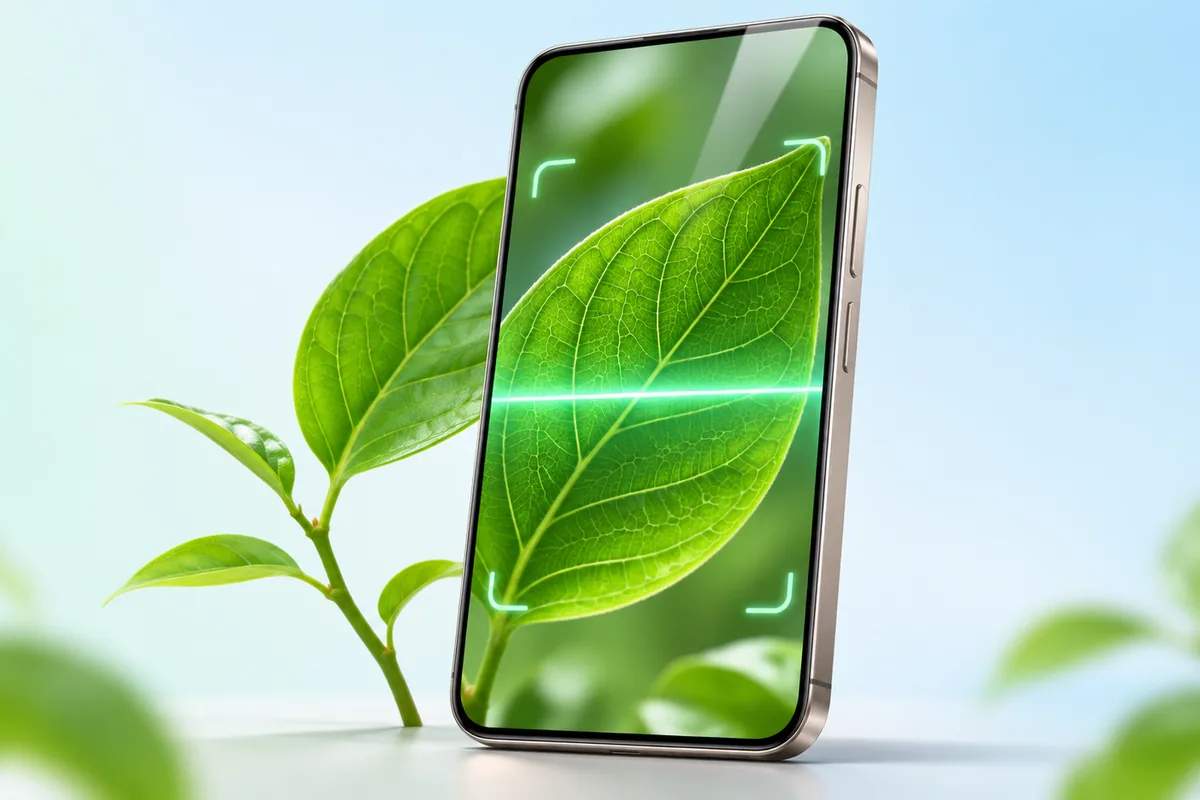
Google Lens uses your camera or an existing photo to search for what you see. Some of the most useful google lens uses are copying text from a photo, identifying plants and products, getting help with math, translating signs, and pulling information from documents.
Get Started With Google Lens
On many Android phones, you can open Lens from the Google app, the Google search bar, or Google Photos. On an iPhone, look for the Lens icon in the Google app; you may also see Lens features when viewing pictures in Google Photos. The exact buttons can change with your phone, app version, and region.
Tap the Lens icon, point your camera at something, and take a picture. You can also choose an existing photo or screenshot. If a picture contains several objects, adjust the selection area so Lens focuses on the part you care about. Clear light and a steady image usually help more than getting very close.
Remember that Lens sends visual information to Google to produce results. Avoid using it on sensitive records unless you are comfortable with how that information may be handled. If you use an iPhone, our guide to iPhone privacy settings can help you review app permissions before sharing photos.
Copy Text From Photos Instead of Typing It
A photo of a notice, recipe, business card, or handwritten note may contain text you need elsewhere. Open it in Lens, choose the text option if it appears, and select the words you want. You can then copy the text into a message, note, or document. This is often faster than typing a long address or list by hand.
Check the copied text before using it. Glare, small print, unusual fonts, and messy handwriting can turn one character into another. Pay special attention to phone numbers, email addresses, dates, and account details. If Lens selects text from the wrong part of the image, crop the photo or move the selection box and try again.
For a longer project, paste the result into a document so you can correct and organize it. If you need somewhere to edit that text, our comparison of free office suites explains some available options. Lens is a convenient starting point for extracting words, not a guarantee that every word is accurate.
Identify Plants and Find Products
Lens can help when you want the name of a houseplant or need to find a product you saw in a picture. Photograph the whole object first, then try a closer view of a distinctive feature. For plants, leaves, flowers, and stems can all provide clues. For products, a clear logo, label, or model number may lead to more useful results than a distant photo.
Treat the results as leads, not proof. Similar plants can look alike, and a product result may show a different size, model, or version. Compare several images and read the details before deciding what you have found. A search for the model number printed on an item can be more reliable than matching its appearance alone.
Never use a Lens match by itself to decide whether a wild plant or mushroom is safe to eat, touch, or give to a pet. For a potentially harmful plant, seek advice from a qualified local source. Product matches also deserve a closer look: Lens may help you identify an item, but it cannot confirm its condition or authenticity from one photo.
Use Lens as a Math Study Aid
If you are stuck on a printed math problem, point Lens at it and look for a homework or math-related option. Depending on what is available in your app, Lens may show an answer, a worked explanation, or search results about the problem. Crop the image to one question if the page contains several; this makes it easier to see what Lens is trying to read.
Use the result to understand a method rather than simply copy an answer. Start by checking that Lens read the symbols correctly. A faint minus sign, fraction line, or exponent can change the entire problem. Then compare the suggested steps with your class notes or another trusted explanation.
Lens may be less helpful with handwritten work, diagrams, and questions that need context from a longer lesson. For schoolwork, the device matters less than taking a readable photo and checking the reasoning. Our guide to what matters in a student laptop covers other practical study needs if you are choosing a device for coursework.
Translate Signs, Menus, and Labels
Lens can translate text through your camera or from a saved picture. Select the translate option, aim at a sign, menu, or label, and choose languages if automatic detection gets them wrong. This can be handy when you need the general meaning of short text without typing unfamiliar characters.
For the clearest result, hold the phone steady and capture the full sentence. Translation can lose meaning when the image cuts off a line or mixes text in different languages. Decorative lettering and text on a curved package can also be difficult to read. If the translated overlay is confusing, try taking a photo first and looking at it again.
Be careful with important instructions. A quick translation may miss a warning, an ingredient, or the meaning of a phrase in context. Do not rely on it alone for medical directions, legal documents, or allergy information. It is useful for getting oriented, but ask a knowledgeable person or consult an official translation when the exact wording matters.
Pull Details From Documents
Lens can save time when you need a small piece of information from a paper document. Photograph a printed letter, form, or receipt, then select and copy a date, reference number, or address. You can also search visible text if you are trying to understand an unfamiliar term. Lay the page flat and avoid shadows for a more readable image.
There is an important difference between extracting text and making a proper scan. Lens is useful for reading and copying parts of a page, but a dedicated document scanner is usually better for straightening pages, combining multiple pages, and saving a clean PDF. Check the scanner options on your phone or in an app you already use if you need to submit a document.
Keep sensitive paperwork in mind. Crop out details you do not need, and review where the photo and any copied text will be stored. Document photos can also take up cloud space over time. If that is a concern on an iPhone, see our guide to freeing up iCloud storage before deleting files you may still need.
Practical Tips for Better Results
Choose the Lens task that matches your goal. Use text selection when you need exact words, translation when you need the meaning in another language, and visual search when you want to identify an object. If the first result looks wrong, change the photo before repeating the same search.
- Improve the image: Use even light, clean the camera lens, and keep the subject in focus.
- Limit the search area: Crop out unrelated objects, especially when looking for one product or one line of text.
- Look for identifying details: A model number or readable label can be more useful than a general image match.
- Verify important results: Double-check copied numbers, math steps, translations, and plant matches elsewhere.
- Protect private information: Think before selecting photos that show personal records or other people’s details.
Lens works best as a quick first step. It can reduce typing and point you toward an answer, but it cannot judge every image or situation reliably. When a mistake could affect your health, money, safety, or important paperwork, take the extra time to confirm the result.
Frequently Asked Questions
Can I use Google Lens on an existing photo?
Yes. Open Lens and choose a photo or screenshot from your device; the exact steps depend on your app and phone.
Is Google Lens always accurate when copying text?
No. Small print, glare, and handwriting can cause mistakes, so check copied details before you use them.
Can Google Lens identify a plant safely?
It can suggest possible matches, but you should not use a Lens result alone to decide whether a plant is safe to eat or handle.
Is Google Lens a replacement for a document scanner?
Not usually. Lens is useful for extracting text, while a dedicated scanner is better for clean, multi-page PDFs.
Final Thoughts
Google Lens is most useful for small everyday jobs: copying a line of text, finding a likely match, or understanding what a sign says. Give it a clear image, check its results, and use a more suitable tool when you need a formal scan or a dependable expert answer.