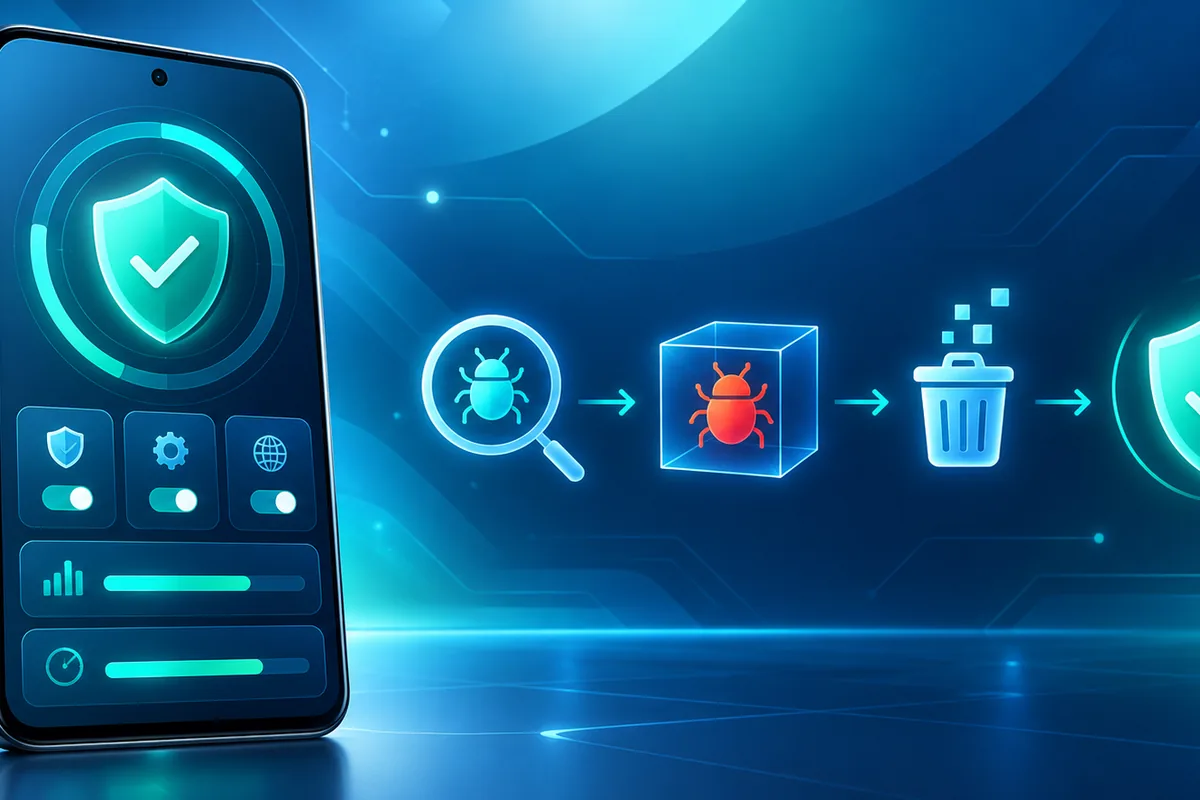
To remove malware from an Android phone without a factory reset, disconnect the phone from the internet, identify recently installed or suspicious apps, revoke their powerful permissions, and uninstall them. Then run Google Play Protect, clean unwanted browser notifications, update Android, and secure any affected accounts. These steps often preserve your photos and files.
What signs suggest malware on your Android phone?
Malware is harmful software. On Android, it may arrive through a deceptive app, an unofficial download, or a link that tricks you into granting access. But a slow phone or weak battery alone does not prove an infection. An old battery, a recent update, or a demanding app can cause similar problems.
Look for a pattern, especially after installing an app or APK. Warning signs include:
- Full-screen ads appearing outside your browser or a familiar app.
- Apps you do not remember installing.
- Unexpected permission requests for Accessibility, notification access, or device administration.
- Unexplained mobile data use, including unusual activity on a prepaid plan.
- Banking or messaging accounts showing activity you did not authorize.
A browser page claiming your phone has a virus is not reliable evidence. Do not tap its alarm, call its number, or install its recommended cleaner.
What should you do before trying to remove malware?
First, turn off Wi-Fi and mobile data if the phone is sending suspicious messages, showing account activity you cannot explain, or repeatedly opening unwanted pages. This may limit communication while you investigate. If you need instructions, read them on another device when possible.
Protect important files, but back them up carefully. Copy photos, documents, and contacts to a trusted account or computer. Do not back up unknown APK files or plan to reinstall every app automatically. A backup preserves data; it does not make a harmful app safe.
If you suspect a banking or payment app was affected, use a different, trusted device to contact your bank or payment provider. In Bangladesh, that may include your mobile financial service. Report transactions you did not approve and follow the provider’s instructions. Avoid entering new passwords on a phone you still suspect is compromised.
How can you remove malware from an Android phone without a factory reset?
Start with the most recent changes. Open Settings, find Apps, and review installed apps. Menu names differ by Android version and phone brand. Look for an app installed just before the trouble began, an unfamiliar name, or an app with permissions it does not need. Research an unfamiliar system-looking app before removing it; legitimate Android components can have unfamiliar names.
If you identify a suspicious app, open its app information screen and select Uninstall. If the button is unavailable, the app may hold a permission that blocks removal. Check the following settings, then try again:
- Device admin apps: Search Settings for this phrase. Turn off administration for the suspicious app, not for a trusted work-management app.
- Accessibility: Review downloaded or installed services. Turn off access for an app you do not trust.
- Special app access: Check permissions such as appearing over other apps, installing unknown apps, notification access, and usage access.
Only change access for an app you can identify as suspicious. A school or employer may legitimately manage a work phone.
Can Safe Mode help you uninstall a stubborn app?
Yes. Safe Mode temporarily prevents most downloaded apps from running. If unwanted pop-ups stop there, a downloaded app becomes a stronger suspect, although Safe Mode does not identify which one.
On many Android phones, open the power menu, touch and hold Power off, and choose Safe Mode. The exact method varies by manufacturer; consult your phone maker’s support instructions if that option does not appear. In Safe Mode, return to Settings and uninstall the suspicious app. Restart normally afterward.
If you cannot remove the app, check its device administrator and Accessibility access again. Do not repeatedly approve permission prompts from an app you are trying to delete. If the phone belongs to your employer, ask its administrator before changing management settings.
Which Android tools and settings help remove malware without a factory reset?
Use built-in checks after uninstalling the suspected app. The tools below address different problems; none is a guarantee that every threat is gone.
| Tool or setting | What it helps with | What to do |
|---|---|---|
| Google Play Protect | Checking installed apps for known harmful behavior | Open Google Play Store, tap your profile icon, open Play Protect, and run a scan. |
| Android security updates | Fixing known system vulnerabilities | Open Settings and search for software or security updates. |
| Browser site settings | Stopping unwanted website notifications or pop-ups | Remove permission for sites you do not recognize. |
| App permission controls | Limiting access an app should not have | Review sensitive permissions and revoke unnecessary access. |
Keep Google Play Protect enabled if your phone supports it. You can also use a reputable security app from Google Play for another check, but avoid installing several cleaners or granting a scanner every permission it requests. An antivirus scan is useful evidence, not a substitute for reviewing suspicious apps and account activity.
How do you clear fake virus alerts and browser redirects?
Some apparent “Android viruses” are actually websites with permission to send notifications. These alerts may imitate system warnings and urge you to install an app. Removing an app will not necessarily stop a website notification.
In Chrome, open Settings, then Site settings and Notifications. Block or remove unfamiliar sites. Review pop-ups and redirects there too. Other browsers have similar controls. If a page keeps reopening, close its tab and clear the browser’s browsing data if needed. Clearing data may sign you out of websites, so check the options before confirming.
If you installed an APK after seeing a warning, check the Downloads folder and delete the installer after uninstalling the app. In Settings, review which apps can Install unknown apps and turn off that access where it is no longer needed. Download future apps through trusted sources, and examine the developer and permissions before installing.
How do you confirm Android malware is gone without a reset?
Reconnect to the internet only after removing suspicious apps and reviewing permissions. Run a Play Protect scan, then use the phone normally for a while. Check whether pop-ups return, whether unknown apps reappear, and whether mobile data use remains unusual. Review your installed apps and sensitive permissions once more.
From a trusted device, change passwords for accounts that may have been exposed. Start with your primary email, because it may control password resets for other services. Sign out of unfamiliar sessions where the service allows it, and enable two-factor authentication. If money or sensitive information is involved, contact the relevant provider promptly. Changing a password does not reverse a transaction that has already happened.
When is a factory reset still the safer choice?
A reset is a last resort when the phone remains compromised, an unwanted app keeps returning, or you cannot regain control of important settings. It may also be appropriate if a security professional or your organization’s IT team advises it. A reset erases local data, so verify your backup first and make sure you know the credentials needed to sign in afterward.
After a reset, install Android updates and restore personal files cautiously. Reinstall apps individually from trusted sources rather than restoring a questionable APK. If problems persist even after a careful reset, contact the phone manufacturer or a qualified repair service. They can help assess whether the issue is software, a managed-device setting, or a hardware fault.
FAQ: What else should you know about removing Android malware?
Can Google Play Protect remove every Android threat?
No. Google Play Protect can detect many harmful apps, but no scanner catches everything. Review apps, permissions, browser settings, and account activity as well.
Will uninstalling a malicious app delete my photos?
Uninstalling an app normally does not delete photos stored elsewhere on your phone. However, it can remove data saved only inside that app. Back up important files first.
Is Safe Mode available on every Android phone?
Most Android phones offer Safe Mode, but the steps vary. Check your manufacturer’s instructions if holding Power off does not show the option.
Should I install a free cleaner from a pop-up warning?
No. Close the page instead. A website warning is not a trustworthy diagnosis, and its suggested download could make the problem worse.
Can I remove malware without losing my WhatsApp chats?
Often, yes, if the problem is a separate app and you do not reset the phone. Check your WhatsApp backup status before taking disruptive steps, and never share a verification code with anyone.