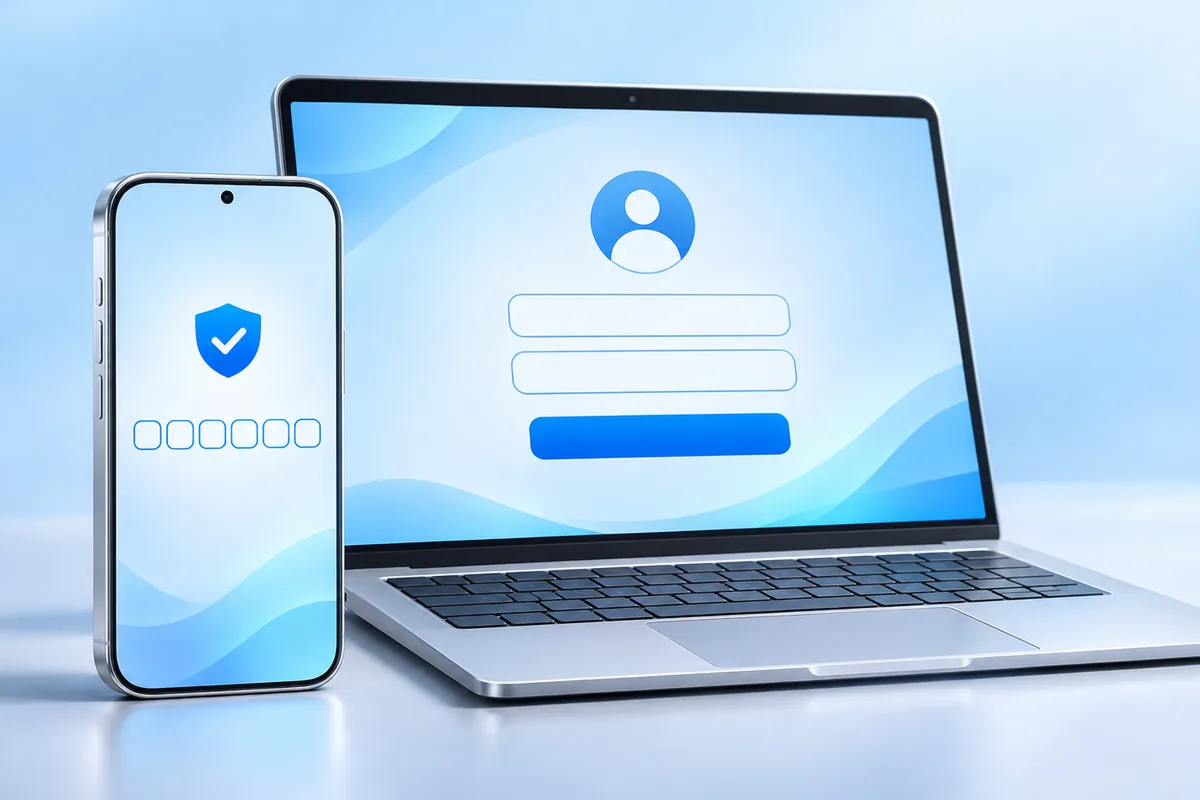
A two factor authentication setup adds a second check when someone signs in to your account, so a stolen password alone is usually not enough. Start with your main email account, then protect your password manager, banking, and other important accounts. An authenticator app is usually a better choice than text messages when both are available.
What Two-Factor Authentication Actually Protects
Two-factor authentication, often called 2FA, asks for something beyond your password. That second check might be a code from an authenticator app, a text message, or approval on a device you already use. If someone learns your password through a data breach or a fake sign-in page, they may still be unable to enter your account.
This matters most for accounts that can unlock other parts of your digital life. Someone who gets into your email may be able to reset passwords elsewhere. Access to a cloud account could expose private files or photos. If you use Apple’s cloud services, it helps to understand what you keep in iCloud storage as well as how you protect the account.
2FA is not a promise that an account cannot be taken over. A scammer may trick you into sharing a code, and a stolen, unlocked device may already be signed in. Think of 2FA as an important extra barrier, not a replacement for a strong, unique password and care with sign-in requests.
Authenticator Apps vs SMS Codes
An authenticator app generates short-lived codes on your phone or another device. It usually works without a mobile signal after setup. SMS 2FA sends a code to your phone number, which can feel simpler because there is no separate app to manage.
When an account offers both, choose an authenticator app if you can manage its recovery steps. SMS can be vulnerable if someone takes control of your phone number, and texts may not arrive when you have poor reception or are changing mobile service. That does not mean SMS is useless: it is generally better than leaving 2FA off when it is the only option.
If you switch phones, plan how you will keep access to your authenticator before wiping the old device. A phone-number change can also affect SMS sign-ins. If your mobile service uses an eSIM, our guide to switching phones with an eSIM explains that part of the move. In either case, saved backup codes or another recovery method can prevent a routine phone change from becoming an account lockout.
Which Accounts Should You Secure First?
Begin with your main email account. Password-reset messages for many other services arrive there, making it a high-value target. Secure every important email account you use for recovery, not just the inbox you open most often. If you use a separate mail app, remember that its convenience does not replace the security settings on the underlying email account; our guide to email clients for Windows explains the difference between mail apps and services.
Next, enable 2FA on your password manager, banking and payment accounts, and your Apple, Google, or Microsoft account. Then cover social media, shopping accounts with saved payment details, and work or school accounts where you control the setting.
You do not have to finish everything in one sitting. Make a short list and work through it from most important to least important. For each account, check that its recovery email and phone number are current. Outdated recovery details can make it harder to regain access when you need it most.
How to Set Up 2FA Step by Step
Sign in through the account’s official app or website, then open its security settings. Look for a label such as “two-factor authentication,” “two-step verification,” or “multi-factor authentication.” Menu names vary, so use the service’s own help page if you cannot find the setting.
Choose an authenticator app if it is offered and you are comfortable using one. The service will usually show a QR code to scan with the app. The app then displays a short code, which you enter on the service to confirm the connection. If you choose SMS instead, confirm the phone number and enter the code sent to it. Keep the QR code or setup key private while you complete the process.
Before you close the settings page, save any backup codes and review the recovery options. If the service lets you check trusted devices, remove ones you no longer recognize or use. On an iPhone, you can also review privacy settings worth checking, but those device settings are separate from enabling 2FA on each account.
Backup Codes and Getting Back Into Your Account
Backup codes are one-use codes that some services provide when you enable 2FA. They can let you sign in if your phone is lost, your authenticator is unavailable, or text messages stop reaching you. Not every service provides them, so check its recovery instructions while you can still sign in.
Store backup codes somewhere private that you can access without the phone used for 2FA. A trusted password manager may be convenient; a paper copy kept in a secure place is another option. Avoid leaving codes in an unprotected screenshot or sharing them in a message. Mark a code as used if the service does not do that for you, and replace the set when the service allows it.
Also check whether your authenticator app supports a transfer or backup process. The details differ by app, and some backups need their own password or account access. Before replacing or resetting a phone, confirm that you can reach your codes and recovery methods from the new device. A few minutes of preparation is easier than proving ownership after you are locked out.
What 2FA Cannot Stop
2FA is strongest when you treat every sign-in prompt as a decision. If you receive a code or approval request that you did not start, do not share it or approve it. Open the service directly, check for unfamiliar activity, and change your password if you suspect someone knows it.
Be careful with messages that ask you to “verify” a code over the phone, by email, or in a chat. A real code is meant for the sign-in process you started, not for a person contacting you. A convincing fake sign-in page may ask for both your password and your current code, so check where you are signing in rather than trusting a link in an unexpected message.
Keep using unique passwords, install device and app updates, and lock your phone with a PIN or biometric check. If an account offers passkeys or a physical security key, those may provide stronger protection against certain fake sign-in pages, but availability and setup vary. The best method is one you can use correctly and recover safely.
A Practical 2FA Checklist
Use this quick checklist as you secure an account. It covers both the sign-in method and what happens if you lose your device.
- Start with email: Protect the inboxes used to reset your other passwords.
- Pick a method: Choose an authenticator app over SMS when both are available and you can manage recovery. Use SMS if it is the only second-factor option.
- Finish confirmation: Enter the code or approve the prompt to make sure 2FA is actually enabled.
- Save recovery details: Keep backup codes private and check that recovery contact details are current.
- Plan phone changes: Learn how to move your authenticator or retain access before resetting your old phone.
- Review later: Recheck your methods when you change your number, lose a device, or notice an unexpected sign-in alert.
If a service offers several methods, do not assume they are equally secure or equally easy to recover. Read its recovery instructions before removing an old method. A careful setup you can maintain is more useful than a rushed setup that locks you out.
Frequently Asked Questions
Is an authenticator app safer than SMS?
An authenticator app usually avoids risks tied to control of your phone number and works without a mobile signal. SMS is still better than no 2FA when it is the only option.
What should I do if I lose my phone?
Use a saved backup code or another recovery method provided by the service. Follow its official account recovery process if you cannot access either one.
Do I need 2FA if I have a strong password?
Yes. A strong, unique password helps, but 2FA adds protection if that password is exposed or entered on a fake sign-in page.
Should I share a 2FA code with support staff?
No. Do not give a sign-in code to someone who contacts you; use only the official sign-in or recovery process you opened yourself.
Final Thoughts
A good two factor authentication setup starts with your most important accounts and includes a plan for getting back in. Choose an authenticator app when practical, keep backup codes safe, and never approve a sign-in you did not start. Even if you can only enable SMS 2FA on some accounts, taking that step adds a useful barrier.