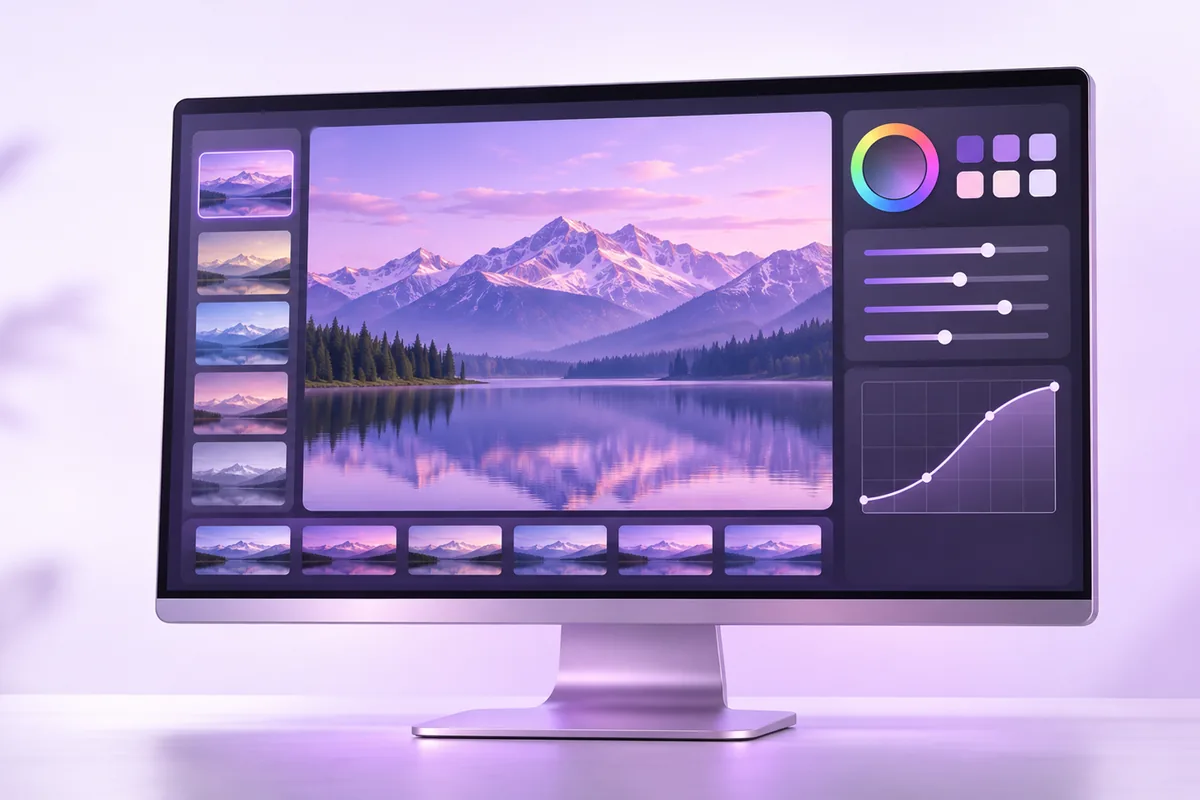
The best free photo editors for beginners are usually the ones that make your next edit easy: Windows Photos or Apple Photos for quick fixes, and Paint.NET for more control on Windows. GIMP, darktable, and Krita are also free, but each has a steeper learning curve. We researched what these desktop tools offer and where a new user might get stuck.
Windows Photos: Start Here for Simple Fixes
If you use a Windows PC and want to crop a picture, straighten a horizon, or adjust brightness, open it in Windows Photos first. It is already part of many Windows setups, so there may be nothing to install. Its editing screen keeps common changes close at hand, which makes it a comfortable starting point for someone who has never used a photo editor.
Windows Photos is best for one picture at a time and small corrections you can finish in a few minutes. Before saving, check whether you are replacing the original or creating a copy. Keeping the original is useful if you later decide that the crop was too tight or the colors looked better before.
The limit is control. If you want to combine images, remove a complicated background, or work with several layers, you will soon need another editor. But for everyday phone and camera pictures, starting with the built-in app is simpler than learning a large program for a small task.
Apple Photos: The Easy Choice on a Mac
Apple Photos is the natural first stop for Mac users whose pictures are already in their photo library. You can crop, straighten, adjust light and color, and apply simple filters without moving files into a separate editing program. The controls are approachable, and you can return to the original version if an edit does not work out.
Its library is both a strength and a possible source of confusion. Photos manages pictures inside its own system, so exporting an edited file is an extra step when you need a copy for a website, document, or another app. If you use iCloud Photos, edits and library changes may also appear on your other devices. It is worth understanding your storage choices before importing a very large collection; our guide to freeing up iCloud storage without paying explains useful options.
For quick improvements to family photos or travel shots, Apple Photos is often enough. Choose another editor when you need detailed layer work or more control over individual parts of an image.
Paint.NET: More Control Without Too Much Clutter
Paint.NET is a good next step for Windows users who have outgrown basic edits. It offers layers, selections, text, and effects while keeping a more approachable layout than many advanced editors. That makes it useful for a simple poster, a thumbnail, or a photo that needs a small object covered or removed.
The free version is available from the official Paint.NET website. Download from the developer rather than an unfamiliar download site, and check the installation instructions if you are unsure which version to choose. Once inside, learn layers early: they let you place text or other changes above the photo without permanently painting over it.
Paint.NET is Windows-only, and it is not built around managing a whole photo library. It also takes more practice than Windows Photos for the simplest crop. If a large image feels slow to edit, file size and computer hardware can both matter; our simple explanation of a CPU can help you understand one part of that picture. For most beginners who want to try layers, though, Paint.NET is a sensible first choice.
GIMP: Powerful, but Give Yourself Time
GIMP is a free, open-source editor for Windows, macOS, and Linux. It can handle detailed selections, layers, masks, retouching, and image composition. If you want to cut a person out of one picture and place them in another, GIMP has the tools to do it without a paid subscription.
That range of tools is also why it may feel overwhelming on day one. A beginner can spend more time finding a command than making the edit. Start with a single goal, such as cropping an image or adjusting color, and learn the tools needed for that job before exploring everything else. Save an editable project file while you work, then export a separate image for sharing.
GIMP makes more sense when you expect to grow into advanced editing than when you only need to brighten a few snapshots. Large projects can also take up considerable disk space, especially when you keep originals and exported copies. If storage is becoming a concern, our guide to choosing between an SSD and an HDD explains the basic trade-offs.
darktable: For Learning RAW Photo Editing
darktable is a free, open-source option for photographers who want to work with RAW files from a camera. RAW files hold more image information than a typical finished JPEG, giving you more room to adjust exposure, color, and detail. darktable also helps organize a collection of images, so it is closer to a photo workflow than a quick drawing or design app.
The important word for beginners is “learning.” Its many editing modules can be difficult to understand at first, and a good result may take several small adjustments. It is not the easiest place to make a fast crop before sending a picture to a friend. If your camera produces both RAW and JPEG files, begin with a few RAW images you know well and compare your edits with the camera’s JPEG versions.
darktable generally keeps edits separate from the original image data, which gives you room to change your mind. Still, keep backups of your photos. Choose darktable if learning camera-photo editing appeals to you; choose Photos or Paint.NET if you mainly want quick fixes.
Krita: Best When Your Photos Become Art
Krita is a free, open-source program built primarily for digital painting. It can open photos and work with layers, brushes, selections, and filters, making it useful when you want to draw over an image or turn it into a creative project. For example, you could add hand-drawn details to a portrait or build an illustration using a photo as a reference.
Its painting focus matters. Krita is not the most direct route to organizing holiday pictures or adjusting a large batch of camera files. If all you need is a brighter image and a cleaner crop, its wide range of brushes and panels may feel like extra work. A mouse is enough for basic tasks, but drawing is usually more comfortable with a pen tablet.
Try Krita when your goal includes drawing, painting, or combining visual elements. It runs on major desktop operating systems, but check the current system requirements before installing any large creative app. For standard photo correction, start elsewhere and return to Krita when you have a creative reason to use its tools.
Which Free Editor Should You Choose First?
Pick the smallest tool that handles the edit you actually need. You can always move to a more advanced program later, and learning one clear workflow is easier than installing several editors at once.
- Quick crop, rotation, or brightness fix: Start with Windows Photos or Apple Photos.
- Layers, text, and simple designs on Windows: Try Paint.NET.
- Detailed image editing on Windows, Mac, or Linux: Learn GIMP one task at a time.
- RAW files from a camera: Explore darktable.
- Drawing or painting over photos: Choose Krita.
Whatever you choose, make a copy of an important photo before trying an unfamiliar tool. Check the exported image at full size, not just in the editor’s preview, and keep the original until you are happy with the result. If you are choosing a computer for schoolwork and occasional editing, our guide to what matters in a student laptop can help you focus on useful basics rather than editing features you may never need.
Frequently Asked Questions
What is the easiest free photo editor for a beginner?
Start with Windows Photos on a Windows PC or Apple Photos on a Mac. Both cover common edits without requiring you to learn layers or complex menus.
Is Paint.NET free to use?
A free version is available from the official Paint.NET website. Check that you are using the developer’s site rather than an unrelated download page.
Should I learn GIMP or darktable?
Choose GIMP for detailed edits, selections, and combining images. Choose darktable if your main goal is adjusting RAW photos from a camera.
Do free editors reduce photo quality?
Not simply because they are free. Quality depends on your edits and export settings, so keep the original and check the saved image before deleting anything.
Final Thoughts
For simple edits, the best free photo editor is probably already on your computer: Windows Photos or Apple Photos. Paint.NET is a friendly step up for Windows users, while GIMP, darktable, and Krita reward people with more specific goals. Start with one photo and one task, keep the original, and move to a bigger tool only when you need it.